
Appearance
Exceptions and waivers
An exception lets a package through despite your policies, until an expiry date. Use exceptions for a short, deliberate gap: an urgent fix while you verify a package, a pinned version while a team upgrades, or a pilot of a new library.
Exceptions always expire. When one expires, the package is blocked again; nothing needs to be cleaned up.
There are two ways an exception is created:
- A Security user adds it directly.
- A developer submits a waiver request, and a Security user approves it.
The Exceptions page
In the sidebar, choose Exceptions. The Exceptions tab lists every exception with its package and versions, status (Active or Expired), repositories, expiry and approver. Filter by package name, ecosystem, status and Applies to.
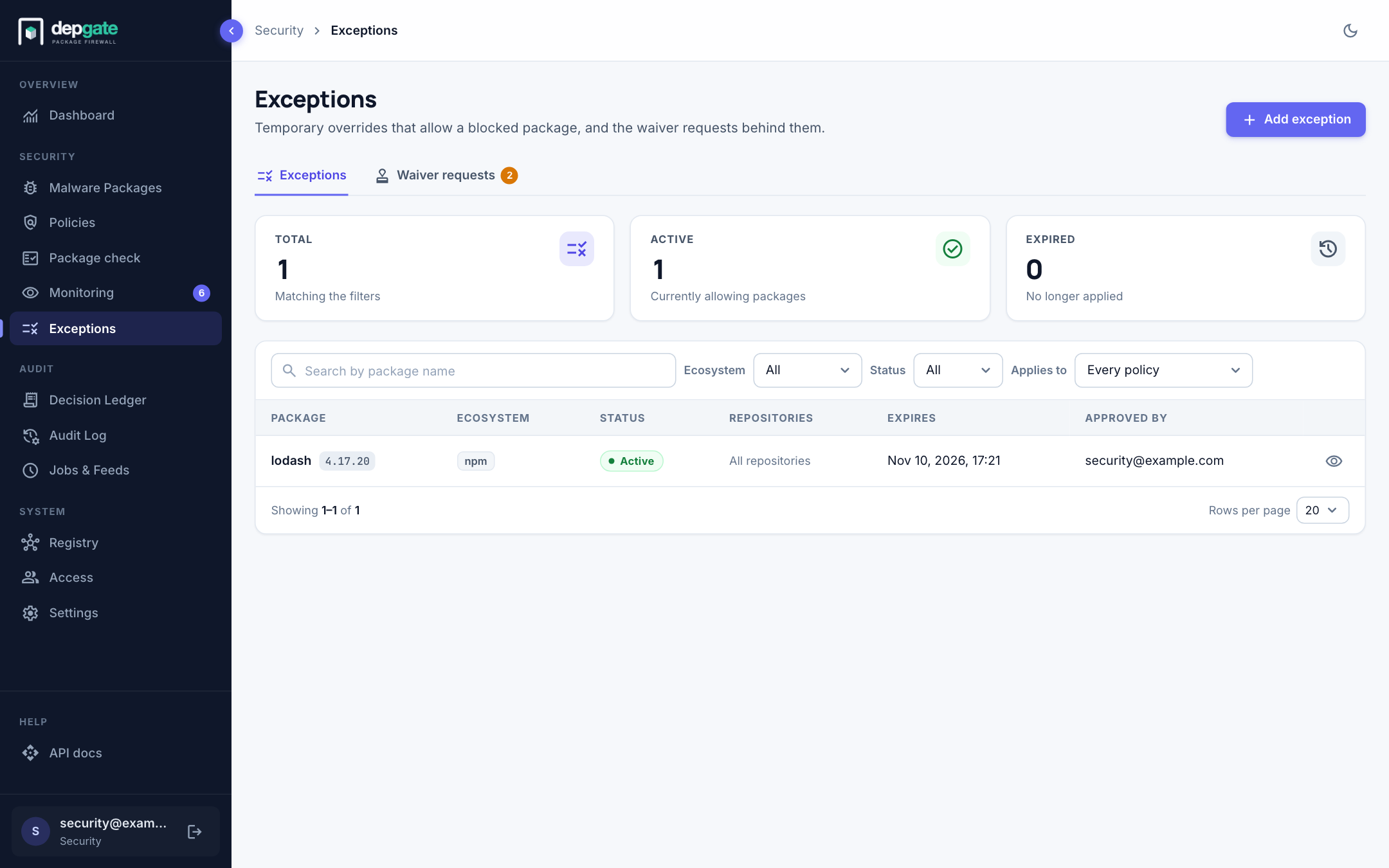
Choose the eye icon on a row to see the full details, including the reason. Revoke is in that view.
Add an exception
Choose Add exception.
Fill in the form:
Field Description Ecosystem The package's ecosystem. Package name The exact name. Versions (optional) Single versions or ranges. Leave empty to cover every version. Prefer exact versions. Applies to All repositories, or only selected ones. Expires When the exception ends. Keep it as short as the need. Reason Why it is safe and needed. Auditors read it. Choose Create.
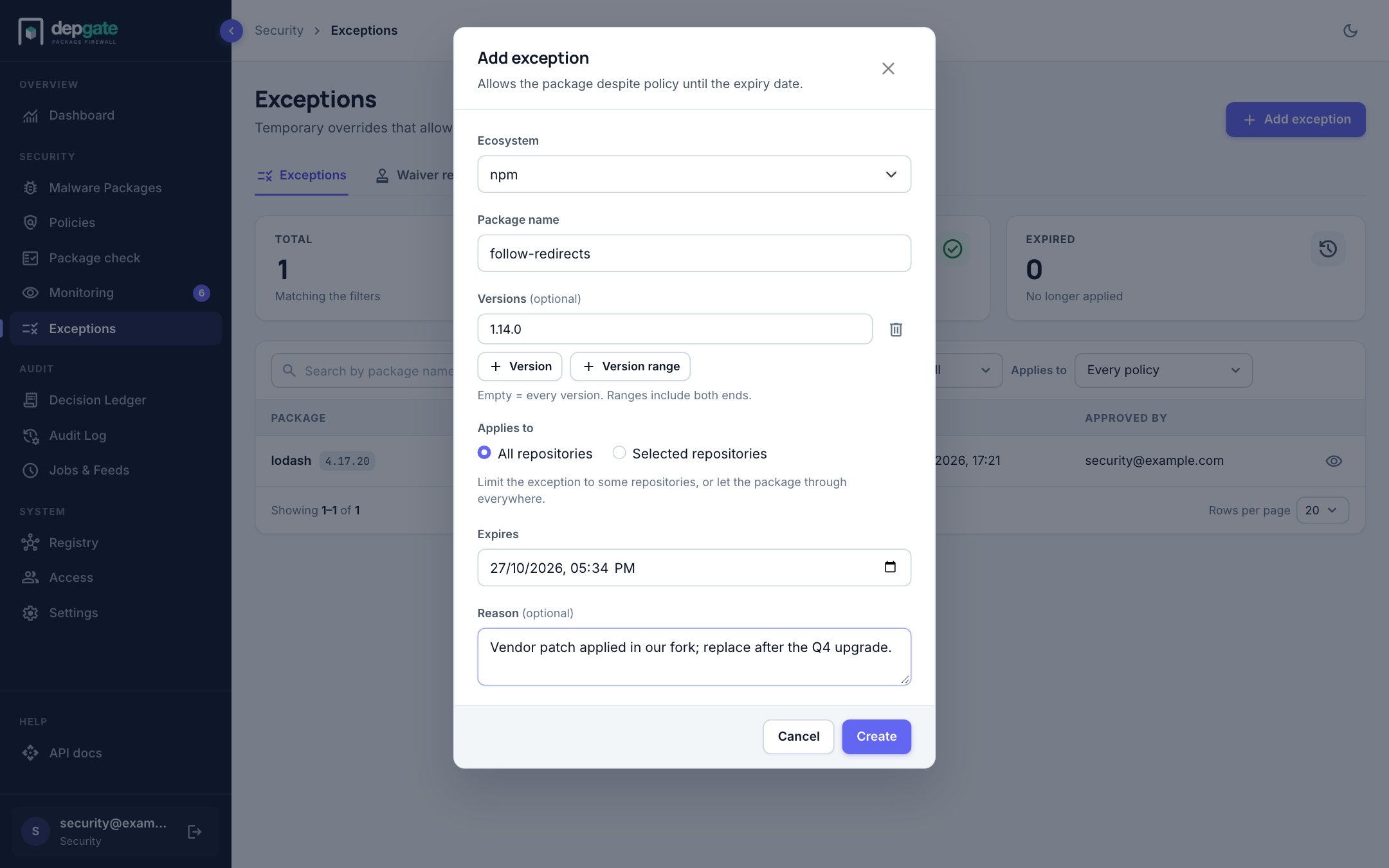
From Package check, Add exception on a blocked version opens this form with the package and version filled in.
What an exception covers
An exception added here covers every policy and the malware list for the versions it names. It does not lift namespace protection; for that, use an exception scoped to the namespace policy.
Review waiver requests
Developers cannot create exceptions. They submit waiver requests, which appear on the Waiver requests tab of the Exceptions page. The badge on the tab shows how many are pending.
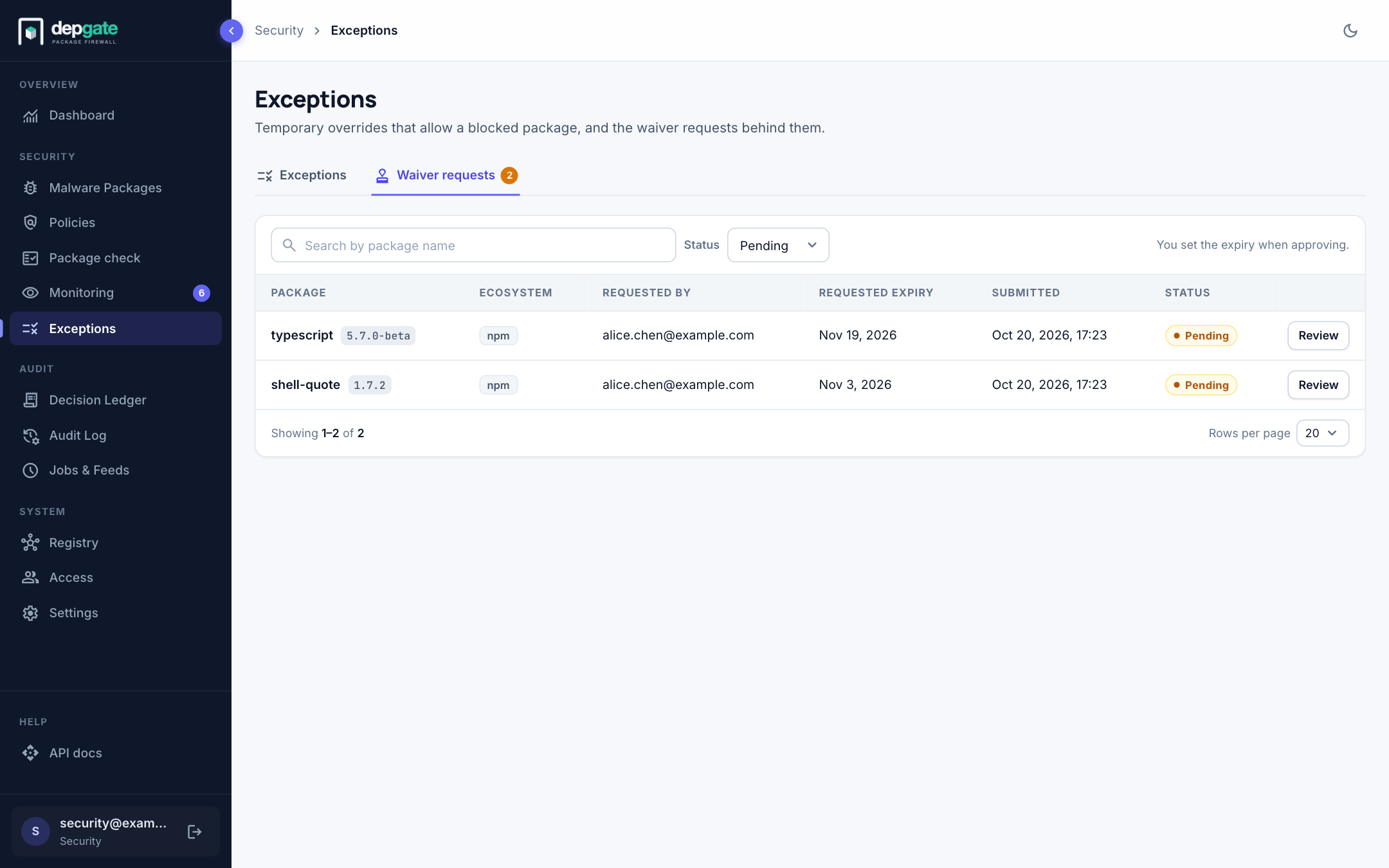
- Choose Review on a pending request.
- Read the package, versions, repositories, requester, requested expiry and reason.
- To approve, set the expiry the exception will use (you can keep the requested date or choose another) and, if needed, narrow or widen the repositories. Optionally add a note. Choose Approve.
- To reject, choose Reject and explain why in the note. The developer sees it.
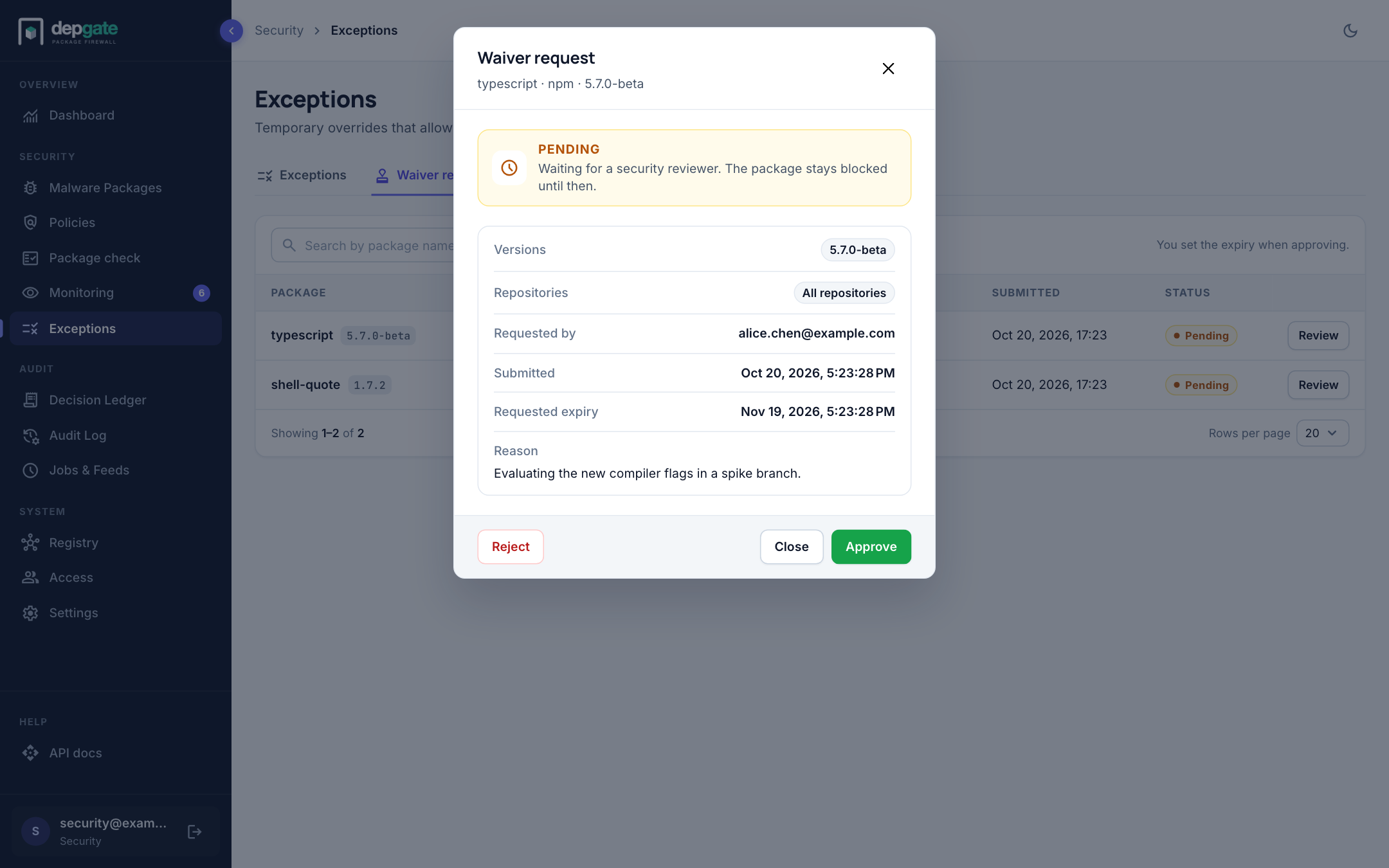
Approval creates the exception at once. Until then the package stays blocked. A rejected request creates nothing; the developer can edit it and send it back for review.
Policy-scoped approvals
An exception normally covers every policy. An approval created from the Monitoring page is scoped to one policy: it stops only that policy from matching, and every other policy still decides. For example, approving a package's license does not let through a version with a blocked vulnerability.
- Approvals are listed on the Exceptions page when Applies to is set to One policy, and under Approved packages in the policy itself.
- Deleting a policy revokes its approvals.
- The malware list ignores approvals.
Repository scope
Exceptions and waiver requests can be limited to repositories, just like policies:
- An exception on a remote lets the package through wherever that remote serves it.
- An exception on a virtual repository lets it through that URL only.
- Deleting a repository deletes exceptions limited only to it, and rejects pending waivers limited only to it.
Audit
Creating, approving, rejecting and revoking exceptions and waivers are all recorded in the Audit Log, with the person who did it.