
Appearance
Monitor before enforcing
A new policy that covers a whole ecosystem, such as "approved licenses only", can break many builds the moment it is enforced. Monitor mode lets you see that impact first, on your real traffic, without blocking anything.
A Block policy in monitor mode records every download it would have blocked. The Monitoring page turns those records into an impact report: what would break, why, and how often. You then adjust the rule, approve the packages that must keep working, and enforce.
The rollout in five steps
- Create the policy in monitor mode. In the policy form, under Enforcement, choose Monitor only (log, don't block). The summary reads Would block … instead of Blocks ….
- Let traffic flow. Leave it for long enough to cover your normal build cycle, typically one to two weeks.
- Review the report on the Monitoring page.
- Adjust. Narrow the rule with Edit rule, and Approve the packages that must keep working.
- Enforce. Review the final impact summary and confirm.
Developers are not affected while a policy monitors. Package check does tell them which versions will be blocked once the policy is enforced, so they can move early.
The Monitoring page
In the sidebar, choose Monitoring. The badge shows how many policies are monitoring.
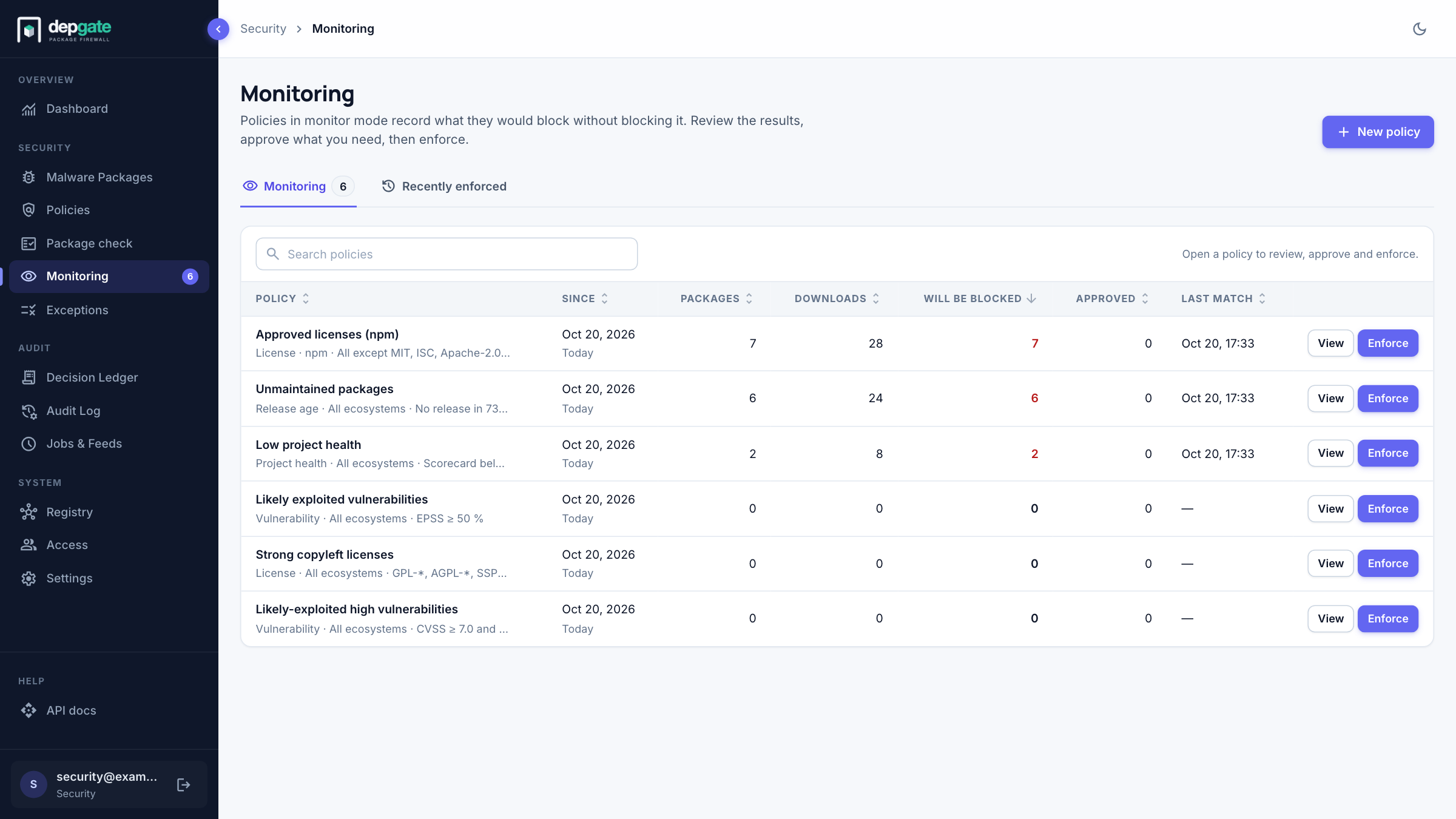
Each row shows the policy, when monitoring started, how many packages and downloads it recorded, how many packages will be blocked (recorded and not approved), how many are approved, and the last match. Sort by any column or search by name. Recently enforced lists policies enforced in the last 30 days, read-only.
The impact report
Choose a policy to open its report.
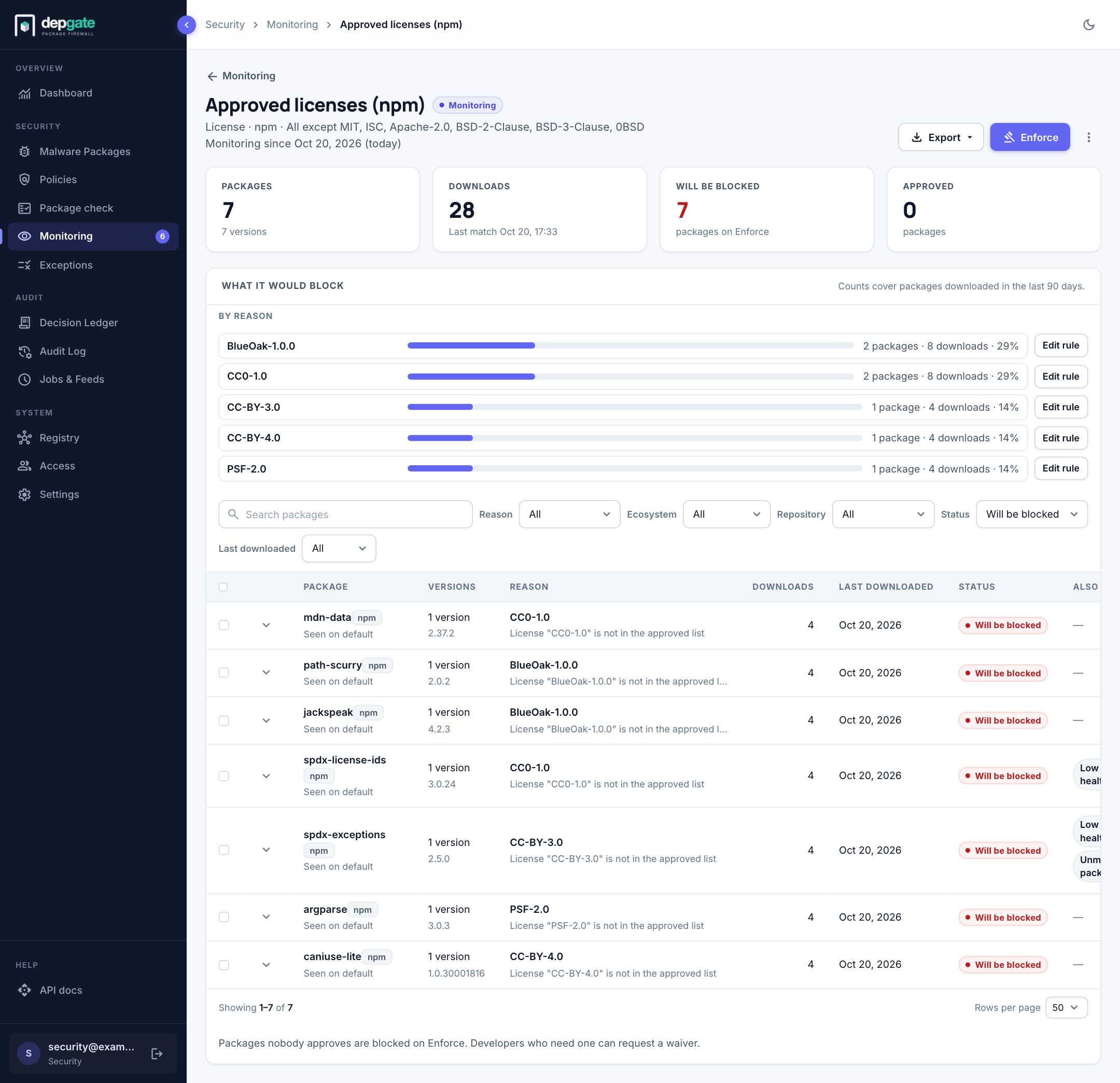
- Totals: packages, downloads, packages that will be blocked, and approved packages.
- What it would block, by reason: one bar per reason, largest first. For a license policy, each license; for a vulnerability policy, each CVE; for a release type policy, each type. Choose a reason to filter the list.
- Packages: one line per package with its versions, the reason, downloads, last download and status. Expand a line to see each version. Also matched by lists other monitoring policies that recorded the same package.
- Filters: reason, ecosystem, repository, status and how recently the package was downloaded.
- Export downloads the list as CSV.
Only real package downloads are recorded, and only when the policy would change the outcome: a version already blocked by another enforced policy, or allowed by a higher-priority Allow policy or an exception, is not recorded. Versions nobody has downloaded for 90 days drop out of the report.
Edit the rule
Each reason has an Edit rule button. It opens the policy form with a suggested change already applied:
| Rule | Suggestion |
|---|---|
| License | Approve the license, unban it, or let packages without license information through. |
| Vulnerability | Remove the listed CVE, raise the CVSS minimum to the next rating, raise the EPSS threshold, or ignore unscored vulnerabilities. |
| Release type | Remove the type. |
| Release age | Halve the "too new" window, or double the "unmaintained" window. |
| Packages | Tells you which pattern to narrow. |
When you save a changed rule, DepGate rechecks everything recorded against the new rule and removes rows that no longer match. The page shows Rechecking… until it finishes.
Approve packages
Approve lets a package keep working when the policy is enforced. Approve one package, one version from the expanded view, or several selected packages at once.
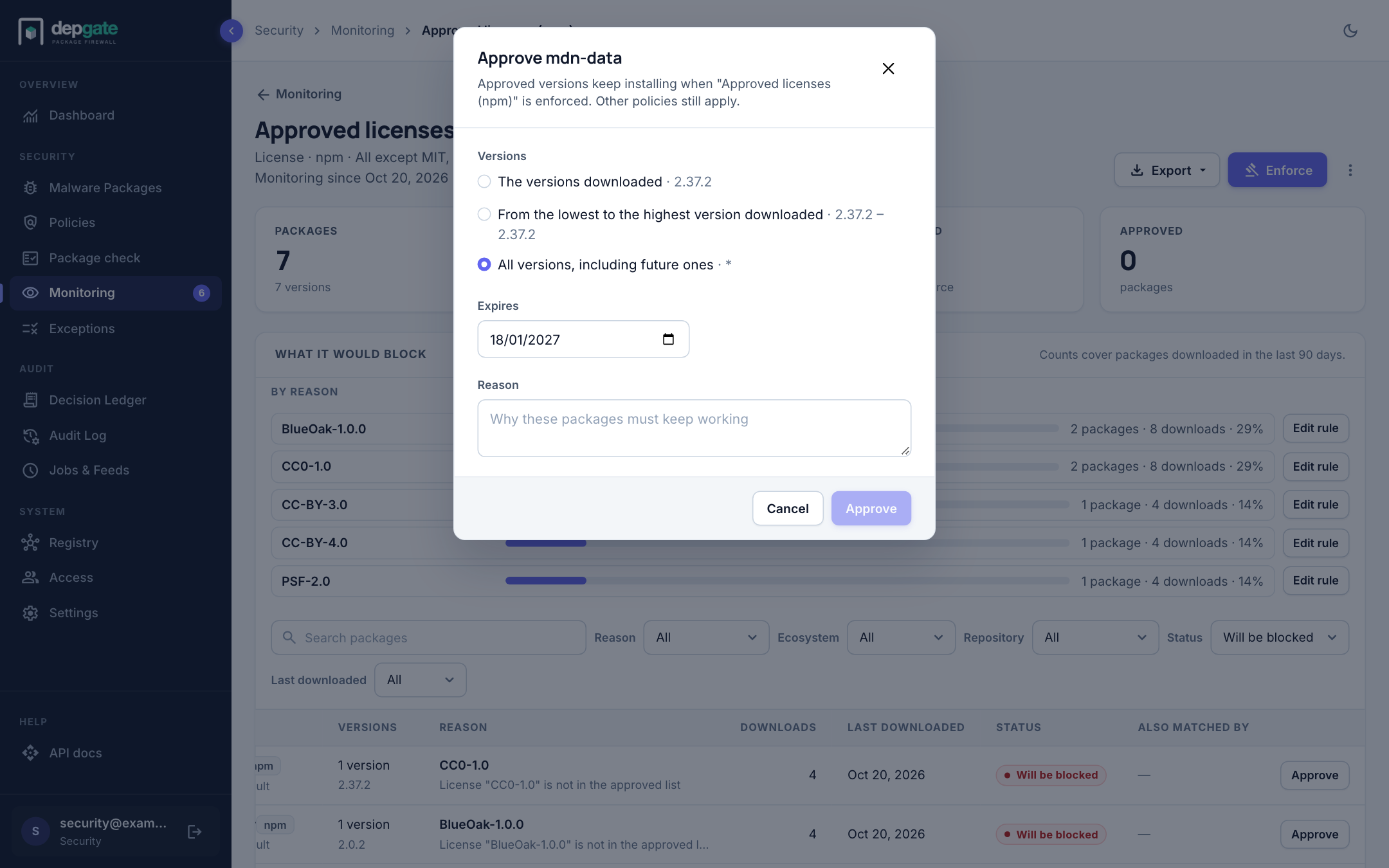
- Choose which versions to approve: the versions downloaded, the range from lowest to highest downloaded version, or all versions including future ones.
- Set Expires (90 days by default) and a Reason.
- Choose Approve.
An approval stops only this policy from matching the package. Every other policy and the malware list still apply. Vulnerability approvals always list versions, so a future vulnerable release is not let through. Release age and Release type policies offer no approvals: change the rule instead, or let developers request waivers.
Approvals appear under Approved packages in the policy, where you can revoke them.
Enforce
Choose Enforce on the report or in the list. DepGate shows what enforcing will do: the packages and versions to be blocked, the downloads per day that would be refused, approved packages, the largest reasons, and how long the policy has been monitoring.
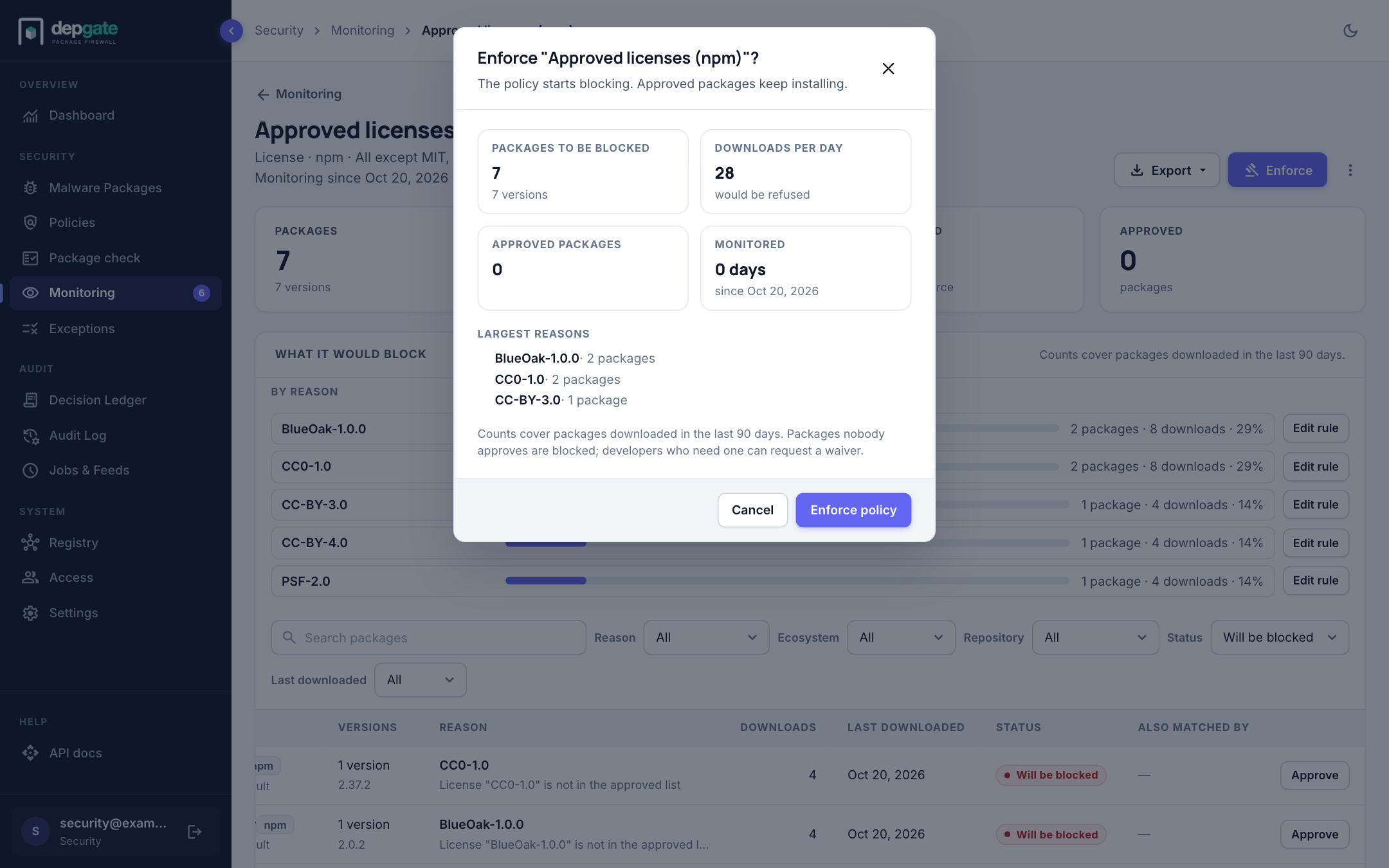
Choose Enforce policy to confirm. Every DepGate replica applies it within seconds, and the change is recorded in the Audit Log. Packages nobody approved are now blocked; developers who need one can request a waiver.
To go back, edit the policy and choose Monitor only again. Monitoring then starts from an empty report.
Start over
Restart monitoring (in the menu next to Enforce) clears every recorded row and resets Monitoring since to now, for example after a large change in your dependencies. Approvals are kept.