
Appearance
Single sign-on
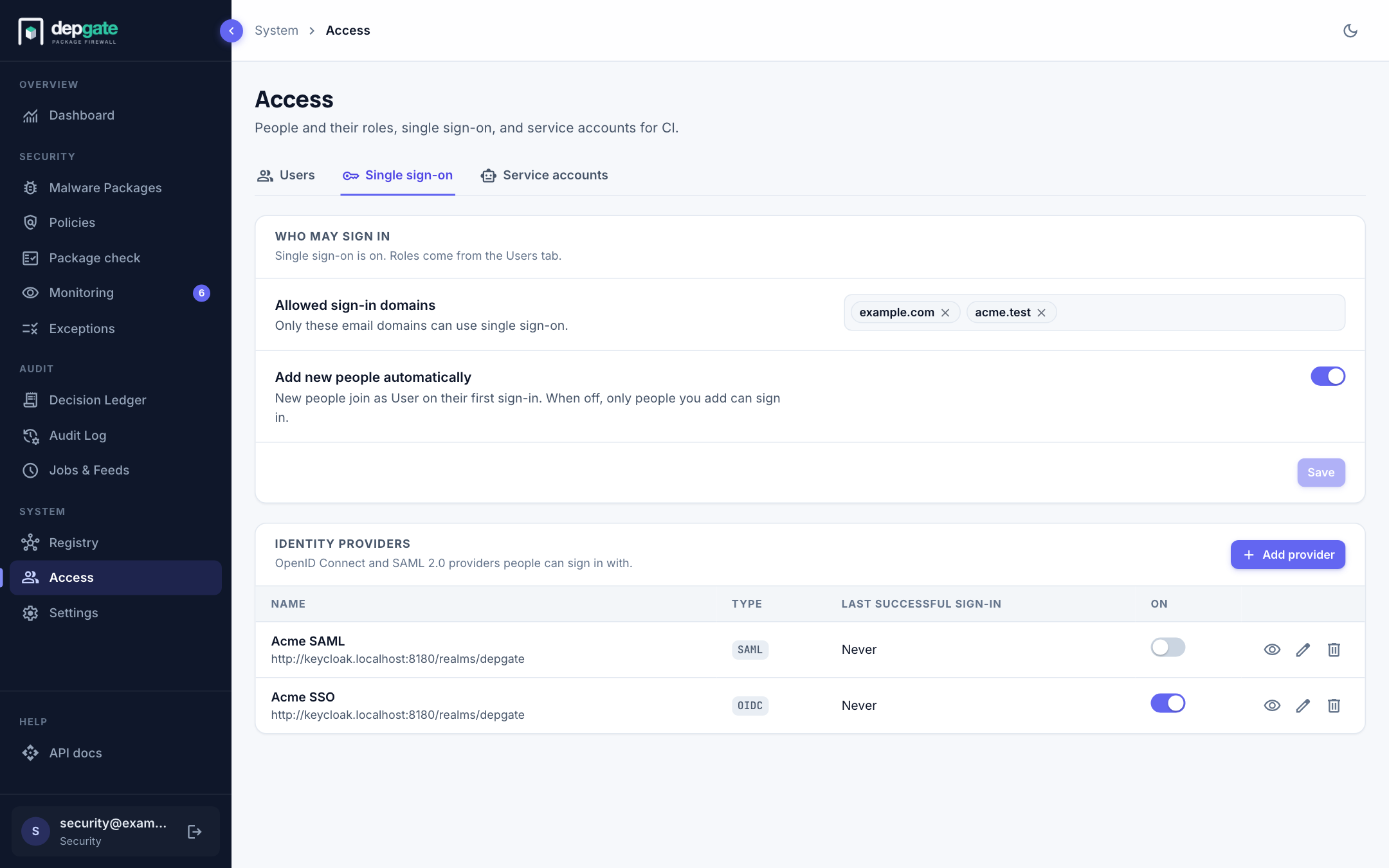
People can sign in with your company identity provider instead of a DepGate password. DepGate speaks OpenID Connect (OIDC) and SAML 2.0, so it works with any provider that offers either: Okta, Microsoft Entra ID, Google, Auth0, Keycloak, Ping, OneLogin, ADFS and others. Prefer OIDC when your provider offers both; use SAML when it is the only option or your policy requires it (SAML).
The identity provider proves who someone is. DepGate decides what they can do. The role always comes from Access → Users (Access), never from the provider.
| Person | Listed under Access → Users? | Result of single sign-on |
|---|---|---|
| ravi@yourcompany.com | Yes, Security | Signed in as Security |
| dev@yourcompany.com | Yes, User | Signed in as User |
| new@yourcompany.com | No | Added as User and signed in (can be turned off) |
| someone@gmail.com | No | Refused: the domain is not allowed |
| Anyone | Yes, but disabled | Refused |
Password sign-in keeps working next to single sign-on. Keep at least one Security user with a password: password sign-in never depends on the provider, so an outage cannot lock you out.
1. Allow your email domains
Under Access → Single sign-on → Who may sign in:
- Add each domain people sign in with to Allowed sign-in domains, for example
yourcompany.com. Matching is exact:yourcompany.comdoes not allowsub.yourcompany.comorevil-yourcompany.com. - Choose whether to Add new people automatically. On: anyone in an allowed domain who is not under Users yet joins as User on their first sign-in. Off: only people you added can sign in.
- Choose Save.
A provider cannot be turned on while the list is empty. Without it, any account the provider vouches for could sign in, which with Google means any Gmail account.
2. Register DepGate at the provider
Create an application at your identity provider:
- Type: web application, confidential client (it has a client secret).
- Grant: authorization code. DepGate always uses PKCE (S256).
- Scopes:
openid email profile. - Redirect URI:
https://<your DepGate>/api/auth/sso/<id>/callback. Choose Add provider in step 3 to see the exact value: it is in the summary on the right of the page, with a copy button, before you fill anything in.
Note the issuer URL, client ID and client secret. The setup guides below say where each provider shows them.
3. Add the provider in DepGate
On the same tab, under Identity providers, choose Add provider:
| Field | What to enter |
|---|---|
| Name | Shown to admins and in the Audit Log, e.g. Corporate SSO. |
| Button label | Shown on the login page, e.g. Sign in with Corporate SSO. |
| Issuer URL | As the provider publishes it. The link under the field opens its discovery document (<issuer>/.well-known/openid-configuration); Discover checks it. A missing or extra trailing / is corrected to the provider's spelling (Auth0 issuers end with /). |
| Client ID, Client secret | From the application you registered. The secret is stored encrypted and never shown again; leave it blank on edit to keep it. |
| Scopes | Default openid email profile. |
| Email claim | The claim holding the email address. Default email. |
| Require email_verified | Default on. Turn off only for providers that never send it (Entra ID). |
| Required claims | Optional claim = value rows every sign-in must carry, e.g. hd = yourcompany.com for Google Workspace or tid = <tenant id> for Entra ID. |
Advanced: enter the endpoints by hand for providers without a discovery document, switch client authentication between client_secret_basic and client_secret_post, set the allowed clock skew, or add authorization parameters such as prompt = login.
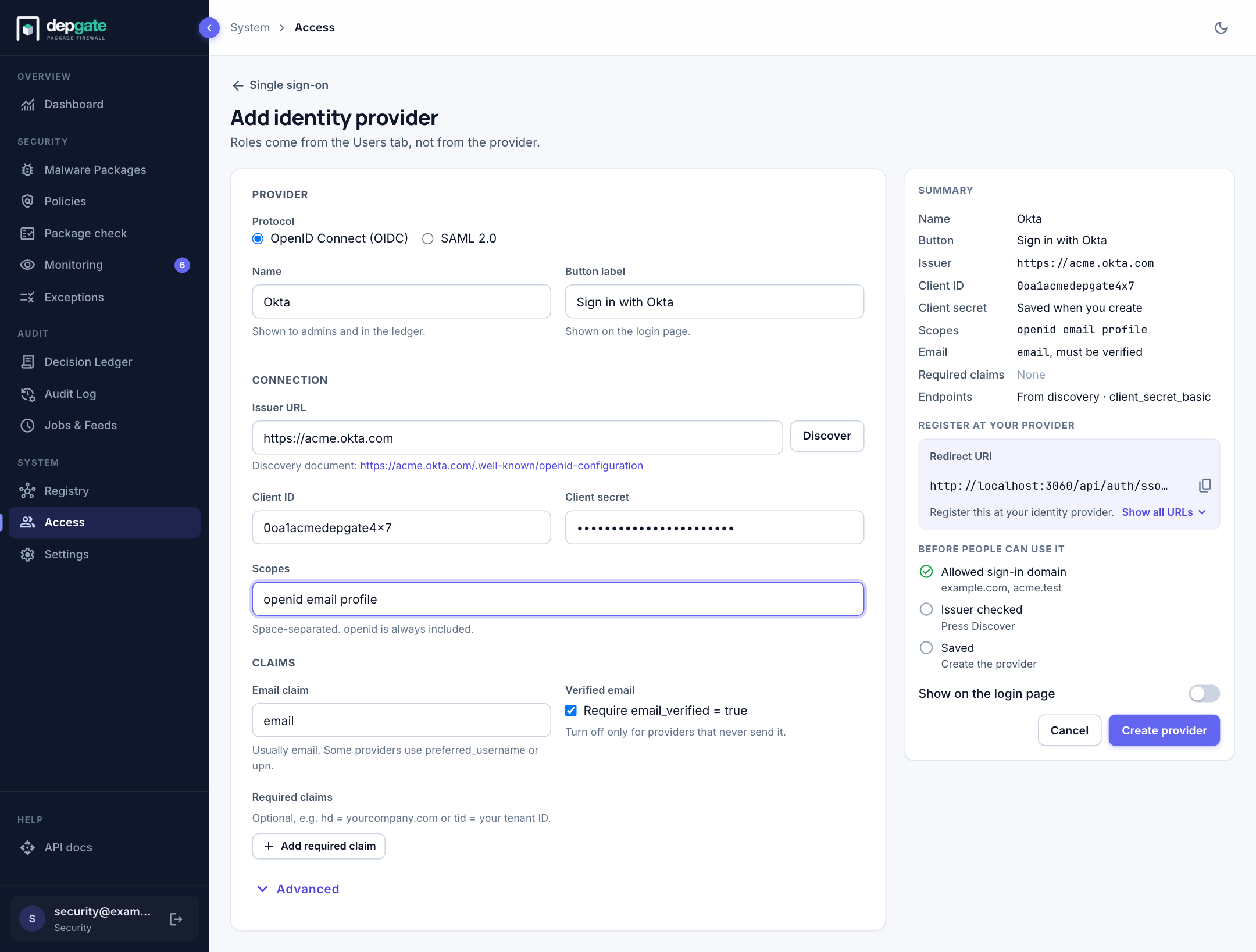
Adding and editing a provider is a page of its own. The Summary on the right shows what will be saved, the Redirect URI to register at the provider (Show all URLs adds the Initiate login URI, for a provider dashboard tile, and the Post-logout URI), a short checklist, and what Save still needs. Choose Create provider; the page then becomes the provider's edit page, where Test sign-in is available. Turn on Show on the login page in the summary, or use the switch in the list. Leaving with unsaved changes asks first. Choose a provider's name, or the eye icon, to see its details without editing.
If DepGate cannot reach the provider, or the domain list is empty, the provider is saved turned off and the reason is shown.
4. Test it
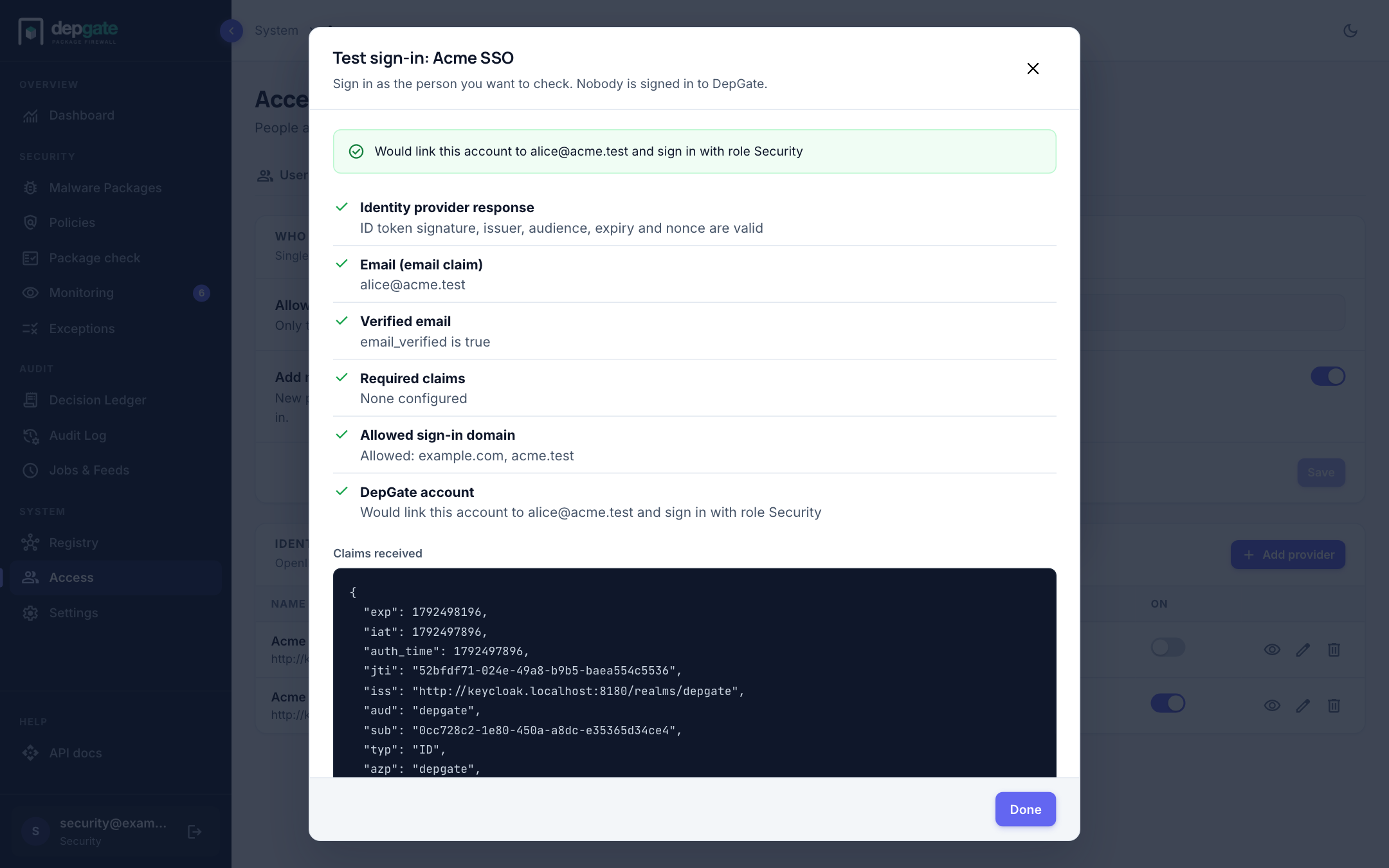
Open the provider (its name, or the eye icon) or Edit it, and choose Test sign-in. A window opens at the provider; sign in as the person you want to check. DepGate shows the claims it received, each check (email, verified email, required claims, allowed domain) and what a real sign-in would do, for example Would sign in as ravi@yourcompany.com with role Security. A test signs nobody in and creates nothing, and works while the provider is still turned off.
What people see
The login page shows one button per provider that is turned on, under the email and password form. After signing in at the provider they return to the page they were opening.
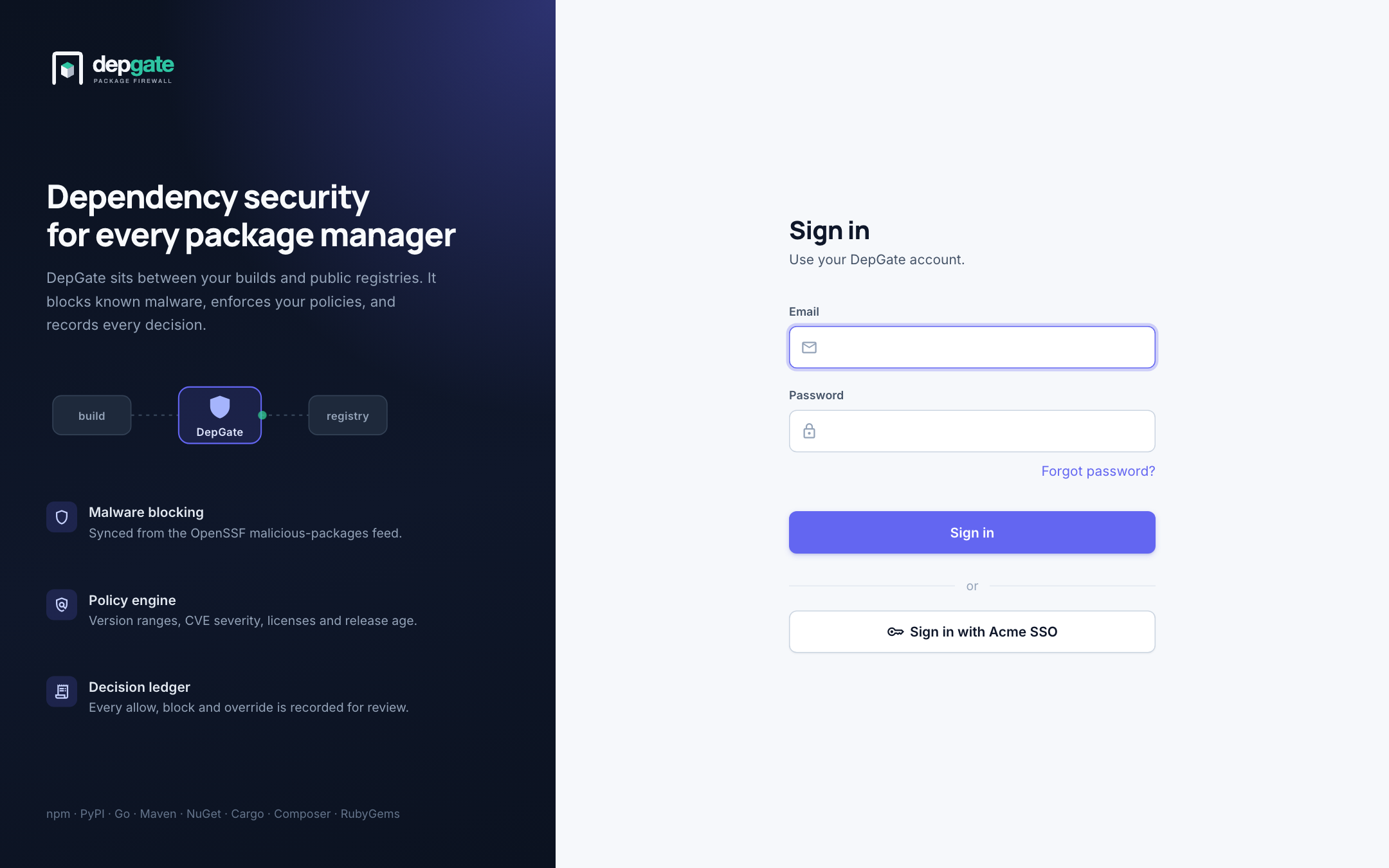
If DepGate refuses a sign-in, the login page says why in plain words, for example Your account's domain is not allowed to sign in. The details go to the Audit Log.
Audit
Every sign-in, by password or single sign-on, is recorded in the Audit Log under the Sign in feature:
| Entry | When |
|---|---|
| Sign-in succeeded | With the method (password, OIDC, SAML), the provider and the role. |
| Sign-in failed | With the reason: wrong password, unknown account, disabled, domain not allowed, unverified email, required claim missing, not invited, another provider account already linked, response failed validation, expired request, provider error or unreachable, too many attempts. |
| Identity linked | A listed person signed in with a provider for the first time. |
| User provisioned | An unlisted person signed in for the first time and was added as User (under Access). |
| Provider created / updated / deleted, Sign-in settings changed | Changes to this setup (under Access). |
Filter by Feature and Action. Changes an admin makes while signed in with single sign-on record that method too. depgate_logins_total counts every attempt by method and result.
When someone leaves
Removing a person at the identity provider stops new sign-ins, but sessions already open keep working until they expire, and a registry token lasts 30 days by default. When someone leaves:
- Remove them at the identity provider.
- In DepGate, choose ⋮ → Disable on their row. Their browser sessions and registry tokens stop working at once.
Consider a shorter registry token lifetime under Settings → Repositories → Gateway security.
Security
- An account is tied to the provider account it first signed in with. If another account at that provider later carries the same email, DepGate refuses it.
- The ID token's signature is always checked against the provider's published keys, as are its issuer, audience, expiry and nonce. Unsigned and HMAC-signed tokens are refused.
- Use your organization's own issuer, not a shared multi-tenant one (Entra
/common), or pin the organization with a required claim. - Plain
http://issuers are refused except onlocalhost. - SAML responses are checked as described in What DepGate checks on every SAML response.
Provider setup guides
These are the places each provider shows the values above. Register the redirect URI DepGate shows after the first save.
Okta
- Applications → Create App Integration → OIDC - OpenID Connect → Web Application.
- Sign-in redirect URIs: DepGate's Redirect URI. Sign-out redirect URIs: the Post-logout redirect URI. To show DepGate on the Okta dashboard, set Initiate login URI to DepGate's Initiate login URI and Login initiated by to Either Okta or App.
- Assignments: assign the people or groups who may use DepGate.
- Issuer:
https://<your-org>.okta.com(org authorization server) orhttps://<your-org>.okta.com/oauth2/default(custom). Client ID and secret are on the application's General tab.
Microsoft Entra ID
- App registrations → New registration, single tenant. Redirect URI: Web, DepGate's Redirect URI.
- Certificates & secrets → New client secret.
- Issuer:
https://login.microsoftonline.com/<tenant-id>/v2.0(never/common). Client ID is the Application (client) ID. - Entra does not send
email_verified: turn Require email_verified off, and add the required claimtid = <tenant-id>. Ifemailis empty for your accounts, set Email claim topreferred_username.
Google
- Google Cloud console → APIs & Services → Credentials → Create credentials → OAuth client ID → Web application.
- Authorized redirect URIs: DepGate's Redirect URI.
- Issuer:
https://accounts.google.com. - Any Gmail account can sign in to Google, so keep your company domain in the allowed list and add the required claim
hd = yourcompany.com(Google Workspace accounts carry it, personal accounts do not).
Auth0
- Applications → Create Application → Regular Web Applications.
- Allowed Callback URLs: DepGate's Redirect URI.
- Issuer:
https://<tenant>.<region>.auth0.com/(with the trailing slash, as Auth0 publishes it). Client ID and secret are on the Settings tab.
Keycloak
- In the realm, Clients → Create client, OpenID Connect, Client authentication on, Standard flow on.
- Valid redirect URIs: DepGate's Redirect URI.
- Issuer:
https://<keycloak>/realms/<realm>. The secret is on the client's Credentials tab.
GitHub
GitHub sign-in is OAuth 2.0, not OpenID Connect: it issues no ID token. It does not work as an OIDC provider.
SAML 2.0
DepGate is a SAML service provider (SP). The sign-in always starts at DepGate (SP-initiated): DepGate sends an AuthnRequest with the HTTP-Redirect binding, and the IdP posts the response back to DepGate's ACS URL with the HTTP-POST binding. The allowed domains, adding new people, roles, audit and leaver guidance above apply exactly as for OIDC.
1. Register DepGate at the IdP
Choose Add provider, protocol SAML 2.0. The summary on the right shows, before you fill anything in:
| Value | What it is |
|---|---|
| SP entity ID | https://<your DepGate>/api/auth/saml/<id>/metadata. The IdP calls it Entity ID, Audience URI or Identifier. |
| ACS URL | https://<your DepGate>/api/auth/saml/<id>/acs. The IdP calls it Assertion Consumer Service URL, Single sign-on URL or Reply URL. HTTP-POST binding. |
| SP metadata | After the first save, a download of DepGate's SP metadata, for IdPs that import it. It is also served at the SP entity ID. |
At the IdP, ask for:
- Signed assertions (most IdPs call it Sign assertion); signing the response as well does no harm.
- NameID format
emailAddress, with the user's email; or another stable format plus an email attribute. - No encryption, unless you turn on Accept encrypted assertions (below).
2. Add the IdP in DepGate
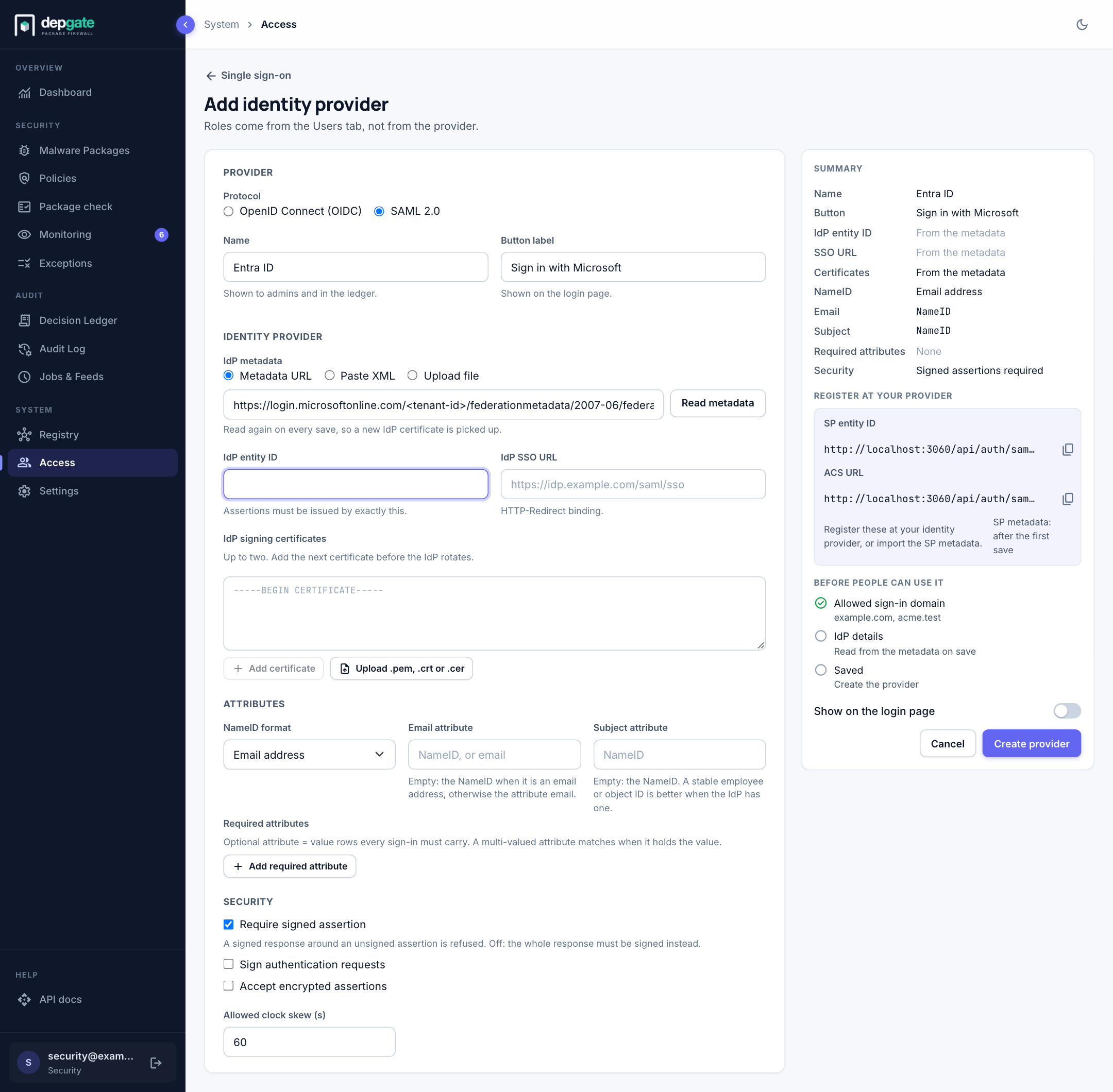
Identity provider
| Field | What to enter |
|---|---|
| IdP metadata | Metadata URL (DepGate reads it now, and again on every save, so a new IdP certificate is picked up), Paste XML, or Upload file. Read metadata fills the three fields below. |
| IdP entity ID | Assertions must be issued by exactly this. |
| IdP SSO URL | The IdP's HTTP-Redirect endpoint. https:// (plain http:// only on localhost). |
| IdP signing certificates | One, or two while the IdP rotates its key. Signatures are checked against these only, never against a certificate inside a response. Each shows its subject, issuer, SHA-256 fingerprint and expiry; DepGate warns 30 days before expiry, and a provider whose certificates have all expired cannot be turned on. |
Attributes
| Field | What to enter |
|---|---|
| NameID format | What DepGate asks for. Default Email address. |
| Email attribute | Empty: the NameID when it is an email address, otherwise an attribute named email. Otherwise the attribute's name, e.g. http://schemas.xmlsoap.org/ws/2005/05/identity/claims/emailaddress. |
| Subject attribute | What ties the DepGate account to the IdP account. Empty: the NameID. A stable employee or object ID is better when the IdP has one: emails can change. A transient NameID changes at every sign-in, so it needs a subject attribute. |
| Required attributes | Optional attribute = value rows every sign-in must carry, e.g. department = Engineering. A multi-valued attribute matches when it holds the value. |
Security
| Field | Default | Meaning |
|---|---|---|
| Require signed assertion | On | The assertion itself must be signed. A signed response around an unsigned assertion is refused. Off: the whole response must be signed instead; an unsigned response is always refused. |
| Sign authentication requests | Off | For IdPs that require signed AuthnRequests (RSA-SHA256). Needs an SP certificate. Turned on automatically when the IdP metadata says WantAuthnRequestsSigned. |
| Accept encrypted assertions | Off | For IdPs that encrypt assertions. Needs an SP certificate. An encrypted assertion still has to be signed. |
| SP certificate and private key | None | Generate creates a self-signed RSA 2048 / SHA-256 certificate valid 5 years, or Upload your own certificate and unencrypted PEM private key. The key is stored encrypted and never shown again. Give the IdP the certificate (or the SP metadata, which includes it). |
| Allowed clock skew | 60 s | Up to 300 s. |
A SAML provider saved with an unreadable metadata URL or an expired certificate is kept turned off with the reason, like an unreachable OIDC provider.
3. Test it
Test sign-in works as for OIDC. For SAML it shows the NameID, its format and every attribute the IdP sent, and the same checks.
What DepGate checks on every SAML response
The XML signature against the configured certificates (and nothing else); the assertion's Issuer equals the IdP entity ID; Audience equals the SP entity ID; the response Destination (when present) and the Recipient equal the ACS URL; InResponseTo names the request this browser's sign-in sent, which is used once; NotBefore / NotOnOrAfter with the clock skew; and each assertion ID is remembered until it expires, so a replayed assertion is refused. Responses with a DOCTYPE are refused, as are responses DepGate did not ask for (IdP-initiated sign-in, e.g. a dashboard tile that posts straight to the ACS). For a dashboard tile, point it at the Initiate login URI https://<your DepGate>/api/auth/sso/<id>/start where the IdP allows a plain link.
SAML setup guides
Okta
- Applications → Create App Integration → SAML 2.0.
- Single sign-on URL: DepGate's ACS URL (Use this for Recipient URL and Destination URL ticked). Audience URI (SP Entity ID): DepGate's SP entity ID. Name ID format: EmailAddress, Application username: Email.
- Assignments: assign the people or groups who may use DepGate.
- Metadata URL: the app's Sign On tab → Metadata URL.
Microsoft Entra ID
- Enterprise applications → New application → Create your own application (non-gallery) → Single sign-on → SAML.
- Identifier (Entity ID): DepGate's SP entity ID. Reply URL: DepGate's ACS URL.
- Metadata URL: App Federation Metadata Url in section 3.
- Entra's NameID is the user principal name by default. If that is not the email, set Email attribute to
http://schemas.xmlsoap.org/ws/2005/05/identity/claims/emailaddress, and consider Subject attributehttp://schemas.microsoft.com/identity/claims/objectidentifier.
Google Workspace
- Admin console → Apps → Web and mobile apps → Add app → Add custom SAML app.
- Download the IdP metadata in step 2 and use Upload file in DepGate.
- ACS URL: DepGate's ACS URL. Entity ID: DepGate's SP entity ID. Name ID format EMAIL, Name ID Basic Information → Primary email.
- Turn the app on for the organizational units that may use DepGate. Only Workspace accounts can use it; personal Gmail accounts cannot.
Auth0
- Applications → Create Application → Regular Web Applications → Addons → SAML2 Web App.
- Application Callback URL: DepGate's ACS URL. In Settings, set
"audience"to DepGate's SP entity ID. - Metadata URL:
https://<tenant>.<region>.auth0.com/samlp/metadata/<client id>.
Keycloak
- In the realm, Clients → Create client, type SAML. Client ID: DepGate's SP entity ID.
- Valid redirect URIs and Assertion Consumer Service POST Binding URL: DepGate's ACS URL.
- Signature and Encryption: Sign documents and Sign assertions on. SAML capabilities: Name ID format email, Force name ID format on.
- Keys: Keycloak requires signed requests by default (Client signature required). Either turn that off, or turn on Sign authentication requests in DepGate, Generate the SP certificate and import DepGate's SP metadata here.
- Metadata URL:
https://<keycloak>/realms/<realm>/protocol/saml/descriptor.