
Appearance
Policies overview
Policies are the rules that decide which package versions your organization may use. This page explains how policies work. To create one step by step, see Create a policy; for every rule and its options, see Policy rules.
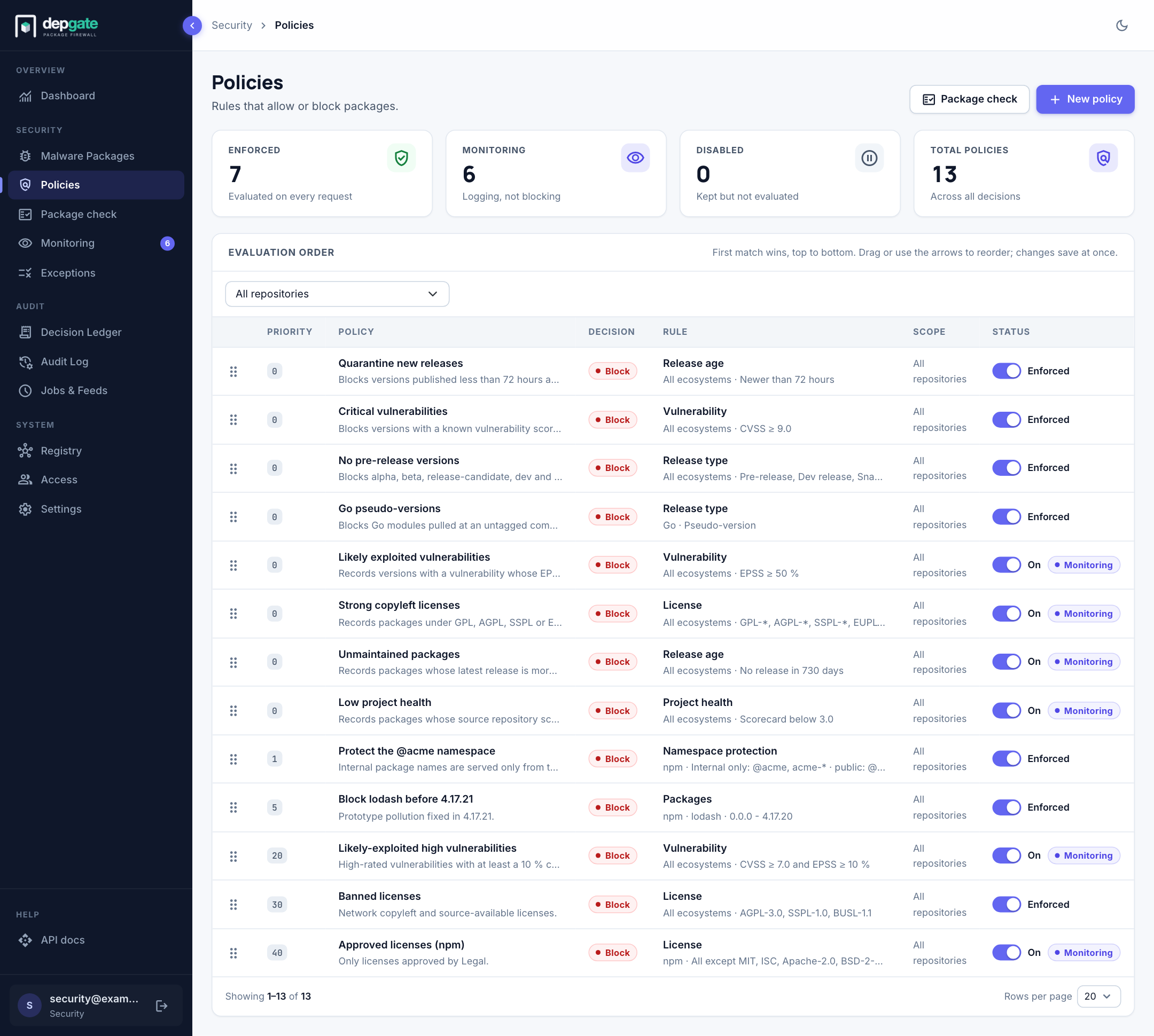
Anatomy of a policy
Each policy has:
| Part | Description |
|---|---|
| Name and description | What the policy is for, in your own words. The name is shown in block messages and the Decision Ledger. |
| Rule | Exactly one rule: Packages, Release type, Release age, Vulnerability, License, Namespace protection or Project health. |
| Action | Block or Allow. Allow is available only for the Packages rule. |
| Enforcement | For Block policies: Enforce (block matching versions) or Monitor only (record what would be blocked). |
| Priority | A number. Lower numbers are evaluated first. |
| Ecosystem | One ecosystem, or All. |
| Applies to | All repositories, or only selected ones. |
| Enabled | A disabled policy is kept but not evaluated. |
A version gets the policy's action when it is in the policy's ecosystem and repositories, and matches the rule.
Starter policies
A new installation comes with eight policies, so the gateway protects something from its first day. Four enforce and four monitor; edit, disable or delete them as you like, and nothing recreates them.
| Policy | Rule | Mode |
|---|---|---|
| Quarantine new releases | Versions published less than 72 hours ago | Enforce |
| Critical vulnerabilities | A known vulnerability scored CVSS 9.0 or higher | Enforce |
| No pre-release versions | Alpha, beta, release candidate, dev and snapshot versions | Enforce |
| Go pseudo-versions | Go modules pulled at an untagged commit | Enforce |
| Likely exploited vulnerabilities | EPSS exploit probability of 50% or higher; vulnerabilities without a score are ignored | Monitor |
| Strong copyleft licenses | GPL, AGPL, SSPL and EUPL in every form | Monitor |
| Unmaintained packages | Latest release more than two years old | Monitor |
| Low project health | OpenSSF Scorecard below 3 of 10; projects without a score are not matched | Monitor |
The monitor policies record what they would have blocked without blocking anything. Review the report under Monitoring and switch a policy to enforce when the report is acceptable. Malicious packages need no policy: the built-in feed blocks them always. Add an internal namespace policy for your own package scopes; it needs your names, so it cannot be shipped.
One rule per policy
Each policy does exactly one thing, so its effect is easy to read and its block messages are precise. To block for several reasons, create several policies: for example one for critical vulnerabilities and one for banned licenses.
| Rule | Blocks |
|---|---|
| Packages | Named packages, optionally only some versions. Can also Allow. |
| Release type | Pre-release, development, snapshot or Go pseudo-versions. |
| Release age | Versions that are too new, or packages that are no longer maintained. |
| Vulnerability | Listed CVEs, or vulnerabilities above a CVSS score and/or an EPSS exploit likelihood. |
| License | Licenses outside your approved list, or on your banned list. |
| Namespace protection | Your internal package names when they come from anywhere but your internal registries. |
| Project health | Packages whose source repository scores low on the OpenSSF Scorecard. |
Evaluation order
For each version, DepGate first applies namespace protection, exceptions and the malware list (see the order of checks). It then evaluates the enabled policies that apply to the request in priority order, lowest number first. The first policy that matches decides, and later policies are not evaluated.
This makes priority meaningful when you combine Allow and Block:
| Priority | Policy | Effect |
|---|---|---|
| 5 | Allow @acme/* (Packages) | Your own packages are always allowed. |
| 10 | Block CVSS 9.0 or higher (Vulnerability) | Applies to every other package. |
| 20 | Block banned licenses (License) | Applies to packages that passed the policies above. |
Allow skips everything below it
An Allow policy lets matching versions through without evaluating any lower-priority policy, including vulnerability checks. Use Allow only for packages you trust, and give it a narrow package list.
Reorder policies
The Policies page lists policies in evaluation order. Change the order by dragging a row by its handle, or with the up and down arrows. Changes save immediately.
Enforce or monitor
A Block policy is either:
- Enforce: matching versions are blocked.
- Monitor only (log, don't block): nothing is blocked. Each download the policy would have blocked is recorded on the Monitoring page.
Monitor broad rules first (vulnerability, license, release age, release type, project health), review what they would break, approve the packages that must keep working, then enforce. See Monitor before enforcing.
Limit a policy to some repositories
By default a policy applies to All repositories of its ecosystem, including ones added later. Choose Selected repositories to limit it:
- A policy on a remote repository applies to every package that remote serves, whichever URL the client used (the remote's own URL,
all, or a virtual repository that contains it). - A policy on a virtual repository applies to everything downloaded through that URL.
For a request through /npm/all/, DepGate applies the policies for all repositories, the policies on all's URL, and the policies on the remote that actually served the package.
all itself cannot be selected: a policy on a remote already covers that remote's packages through all. Use the Repository filter on the Policies page to list the policies that apply to one repository.
If you delete the last repository a policy is limited to, DepGate disables the policy rather than widening it to every repository.
Approved packages
A Block policy can have approved packages: exceptions that stop only this policy from matching, usually created from the Monitoring page. They are listed in the policy view and form, with Revoke. Every other policy still applies to them. See Exceptions and waivers.
View a policy
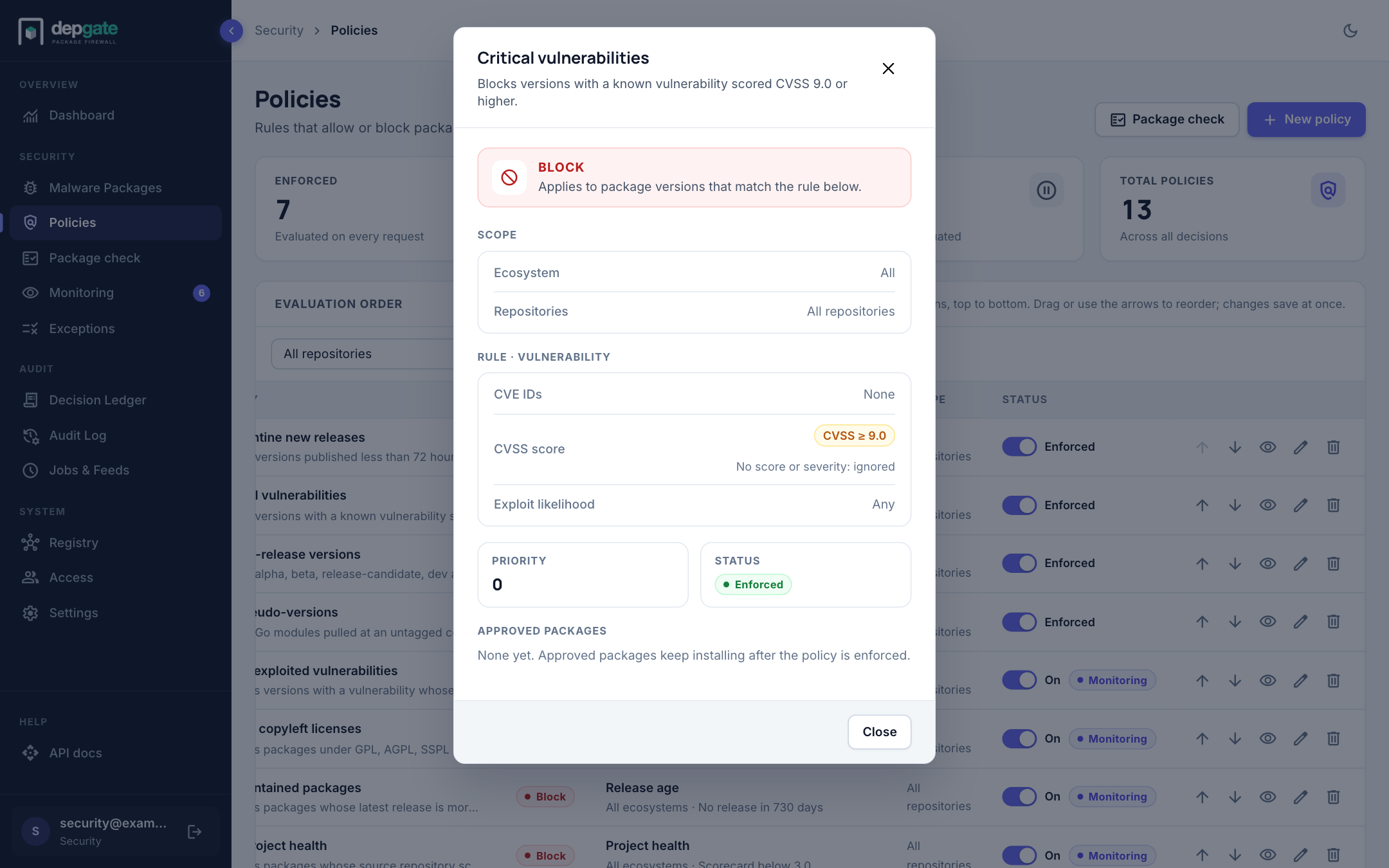
Choose the eye icon on a row to open the policy view. It shows the action, scope, rule settings, priority, status and approved packages.
Disable or delete
- Turn off the Status switch on the Policies page (or Enabled in the form) to stop evaluating a policy without losing it.
- Delete a policy with the trash icon on its row. Deleting also removes its monitoring data and its approved packages.
Every change to a policy is recorded in the Audit Log.