
Appearance
Quick start
In about ten minutes you will run DepGate on one machine, connect npm to it, and watch it block a vulnerable package. This setup is for evaluation. For a production installation, follow Install with Docker.
Before you begin
You need:
- A Linux or macOS machine with Docker Engine and Docker Compose v2.
- Git and OpenSSL.
- Outbound internet access, so DepGate can reach the public registries.
- Ports 80 and 443 free on the machine.
- Node.js and npm, to try an install at the end.
Step 1: Get DepGate
Download deploy-<version>.tar.gz from the latest release and change to the all-in-one folder:
bash
tar -xzf deploy-0.1.0.tar.gz
cd deploy/all-in-one
Step 2: Start everything
The quick-start script writes a configuration file with generated secrets, creates a local certificate authority and an HTTPS certificate for localhost, and starts PostgreSQL, Redis and DepGate from their published images:
bash
./quickstart.shThe first run pulls the images. When it finishes, the script checks that DepGate answers and prints the address and the admin account.
No access to the registry?
Download depgate-<version>.tar from the same release and load it first: docker load -i depgate-<version>.tar. The script then uses the loaded image.
Step 3: Sign in
- Open https://localhost in your browser. The certificate comes from the local CA the script created; accept it, or import
deploy/all-in-one/certs/ca.crtinto your browser's trust store. - Sign in as
admin@example.com. The password isADMIN_PASSWORDindeploy/all-in-one/.env.
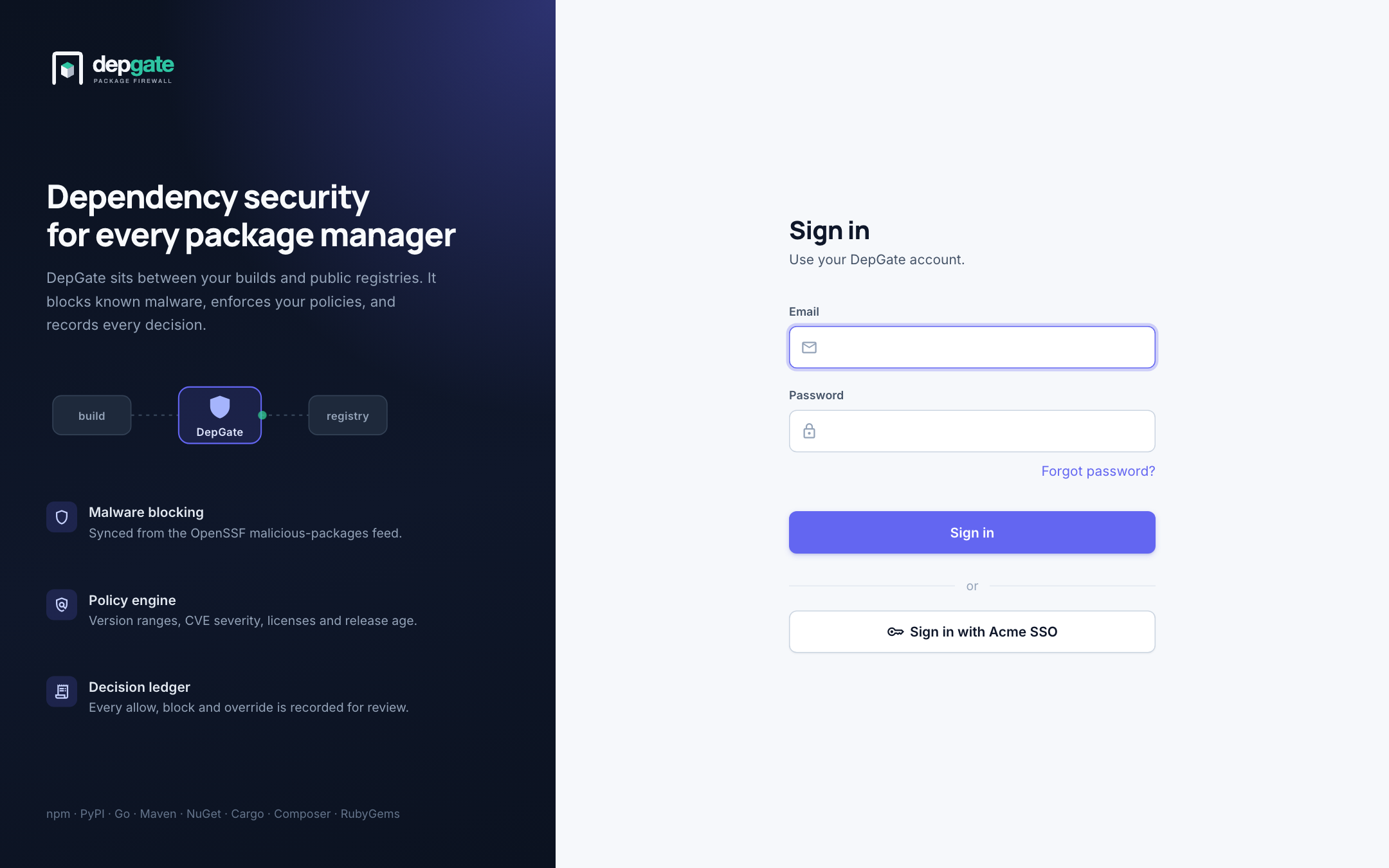
You land on the Dashboard. It is empty until packages flow through the gateway.
The sidebar on the left lists every page. To get more room, choose the arrow on its edge: the sidebar shrinks to icons, and hovering an icon shows its name. Choose the arrow again to expand it. Your browser remembers the choice. On a phone or small window, the sidebar opens from the menu button instead.
Step 4: Look at the policies
In the sidebar, choose Policies. A new installation starts with eight starter policies. Four enforce, among them Critical vulnerabilities, which blocks versions with a vulnerability scored CVSS 9.0 or higher; four only monitor.
To add a policy of your own:
- Choose New policy.
- Name:
High vulnerabilities in production. - Under Rule, choose Vulnerability, and set CVSS score at least to
7.0. - Under Enforcement, choose Monitor only (log, don't block) to see what it would block before it blocks anything.
- Choose Create policy.
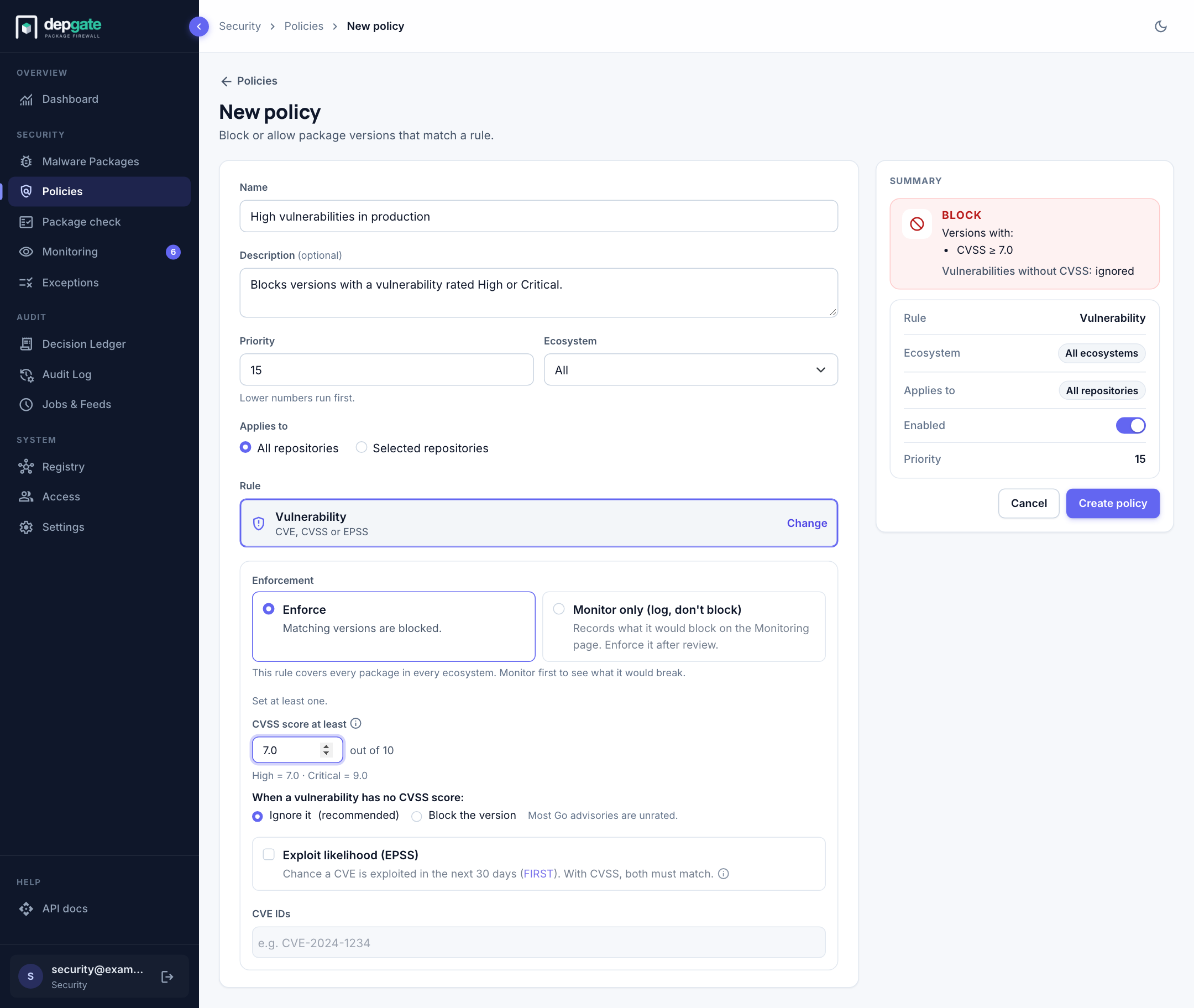
Create a policy explains every field.
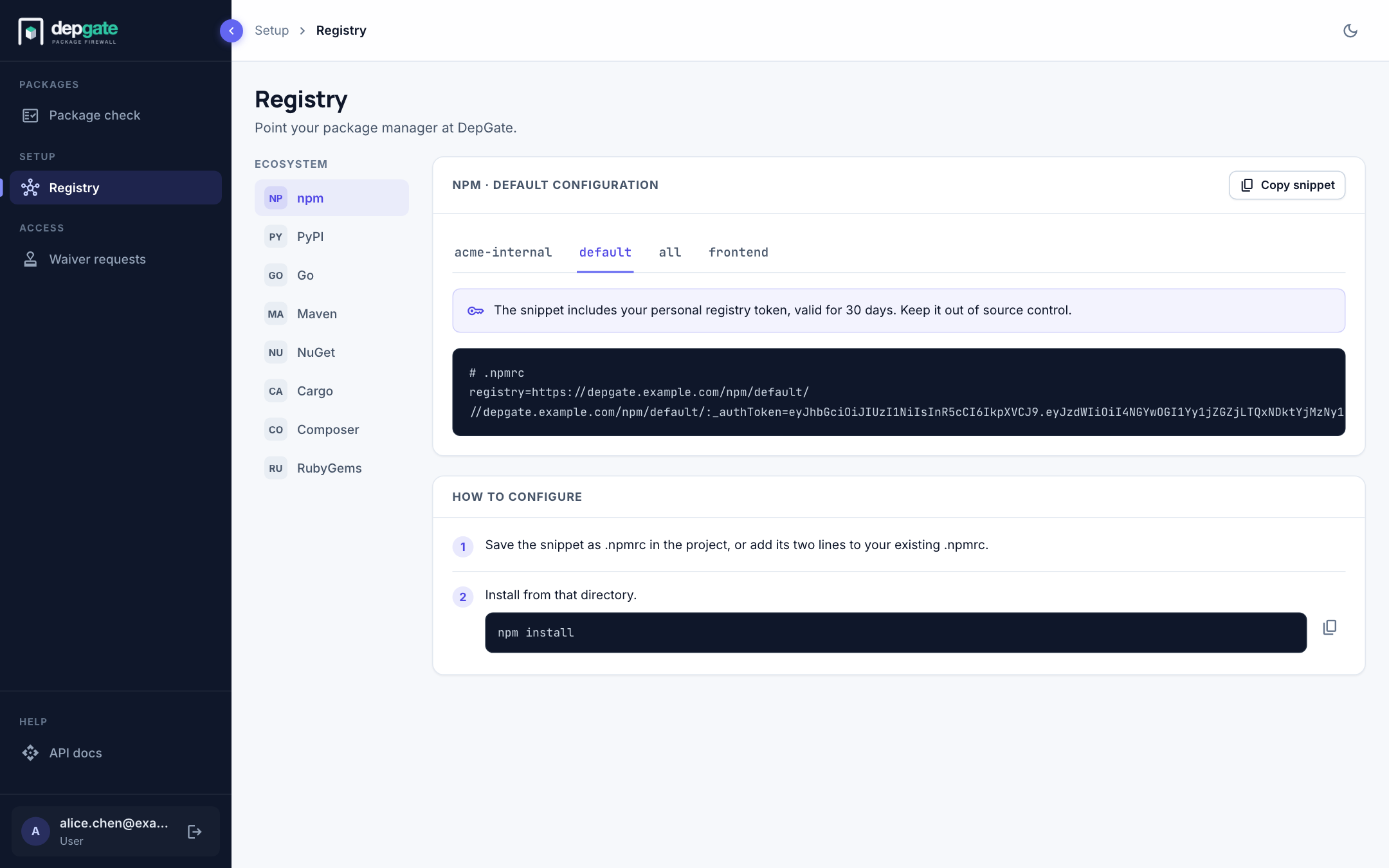
Step 5: Connect npm
In the sidebar, choose Registry. The npm tab shows a ready-made
.npmrcwith your personal registry token.Choose Copy snippet.
Create an empty folder, and save the snippet in it as
.npmrc.npm must trust the local CA. In the same folder, run:
bashnpm config set cafile /path/to/deploy/all-in-one/certs/ca.crt --location=project
Step 6: Install a package
Install a current, healthy version. DepGate allows it:
bash
npm install expressNow install a version with a known critical vulnerability:
bash
npm install minimist@1.2.5npm fails with 403 Forbidden. The response names the policy and the vulnerability that matched, and links to Package check, which shows the newest version you can use instead.
Step 7: See the decisions
- Dashboard counts the allowed and blocked requests.
- Decision Ledger lists the blocked install. Expand it to see the policy, the vulnerability and who made the request.
- Package check (
minimist, npm) shows every recent version of the package, which ones are allowed, and why the others are blocked.
Clean up
To stop DepGate and its database (the data is kept):
bash
./3-run.sh --stopdocker compose down -v in the same folder also deletes the database data and the artifact cache.
Next steps
- Policies overview: plan the policies your organization needs.
- Monitor before enforcing: roll out broad rules without breaking builds.
- Connect your package manager: settings for every ecosystem.
- Install with Docker: a production installation with your own certificate and database.