
Appearance
Access
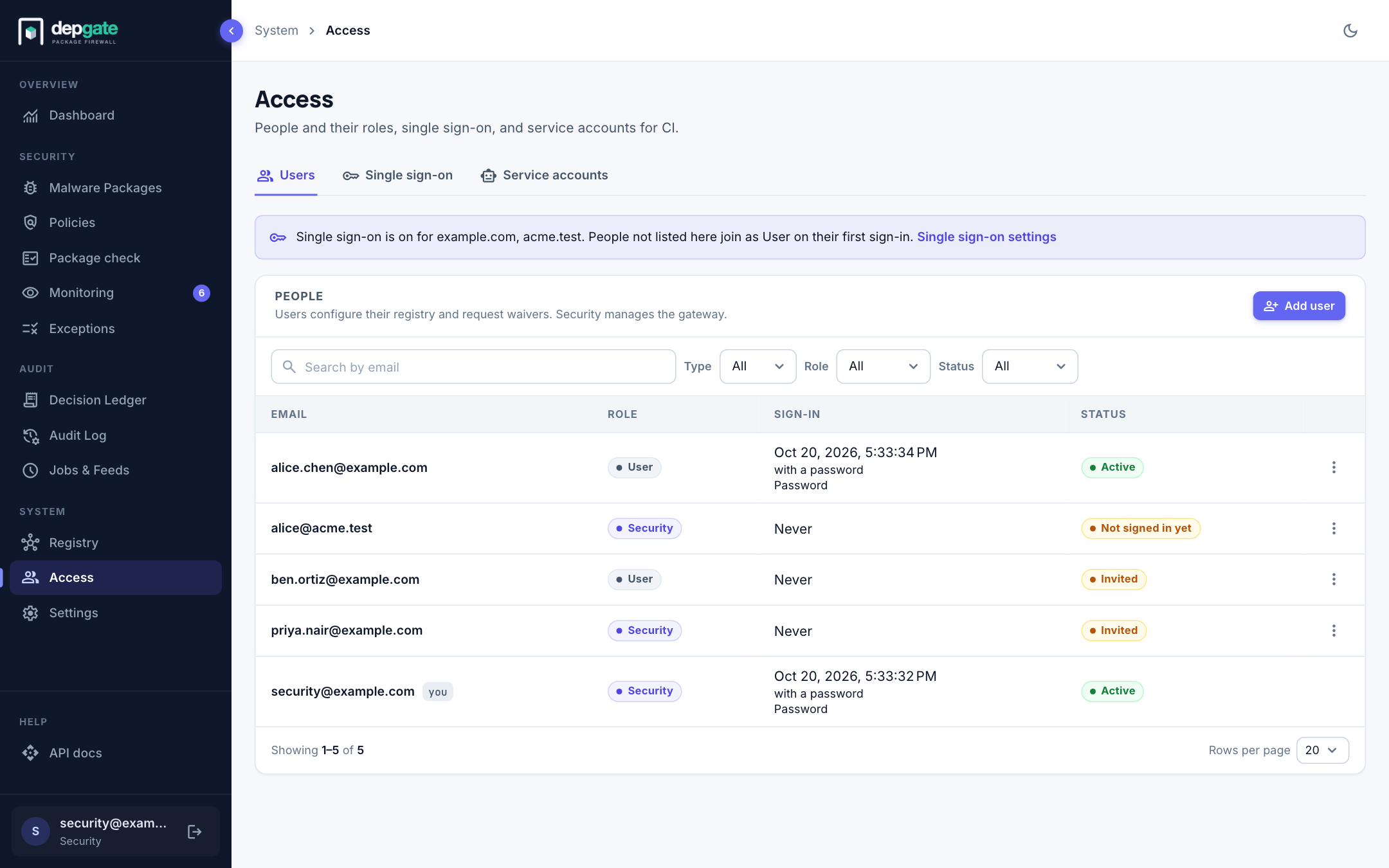
Security users manage who can use DepGate under Access in the sidebar. It has three tabs:
| Tab | For |
|---|---|
| Users | People, their role and status. This page. |
| Single sign-on | Which email domains may sign in with your identity provider, and the providers themselves. See Single sign-on. |
| Service accounts | Credentials CI systems use to get download tokens. See Service accounts. |
Roles
| Role | For | Can |
|---|---|---|
| User | Developers and anyone who installs packages | Copy registry settings, check packages, and request waivers. Lands on the Registry page after signing in. |
| Security | The team that runs DepGate | Everything a User can, plus manage policies, exceptions, malware entries, repositories, people, single sign-on, email, webhooks, log streaming, the artifact cache and jobs. Lands on the Dashboard. |
| Service account | CI/CD systems | Mint CI download tokens through the API. A token lasts at most 1 day. Cannot sign in or change anything. |
The first Security account is created from ADMIN_EMAIL and ADMIN_PASSWORD when DepGate starts for the first time.
People sign in with a password, or with your company identity provider when single sign-on is set up. Either way, the role comes from the Users tab: single sign-on proves who someone is, never what they may do.
Add a person
- Choose Add user.
- Enter the person's Email and choose the Role: User or Security.
- Keep Send a password invitation selected and choose Send invitation. With single sign-on on, the box starts cleared: people who sign in through the identity provider need no password, so choose Add user instead.
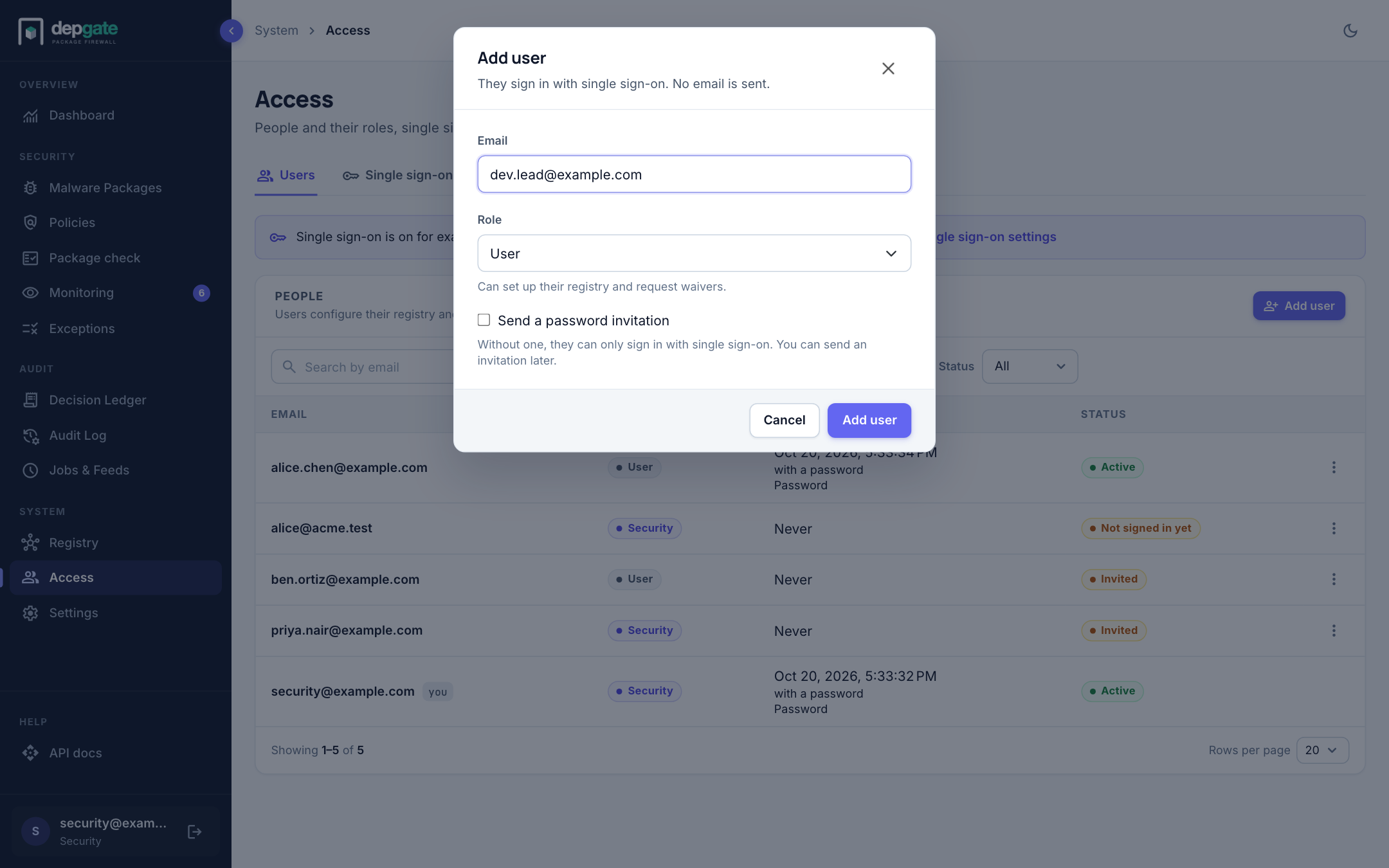
DepGate emails the person a link to choose their own password. You never see or set it. The link works once and expires after 7 days. Until the person signs in, the list marks them Invited (or Not signed in yet when no invitation was sent); choose ⋮ → Resend invitation to send it again.
Without email
If email is not set up, or sending fails, DepGate shows you the invitation link after you add the person. Send it to them yourself, through a channel you trust. Set up Email so invitations and password resets are sent automatically.
The list
Search by any part of an email, and filter by Type (Local or SSO), Role and Status. Long lists are split into pages: choose Rows per page (10, 20, 50 or 100; your browser remembers the choice for each list), a page number, or type one into Go to page. Every list in DepGate pages the same way.
| Column | Shows |
|---|---|
| The sign-in identity. SSO marks someone single sign-on added on their first sign-in. | |
| Role | User or Security. |
| Sign-in | When and how they last signed in, and every method they have used (Password, or an identity provider's name). |
| Status | Active, Invited / Not signed in yet, or Disabled. |
Change a role
Choose ⋮ → Make Security or Make User. The person is signed out everywhere and gets the new role at their next sign-in, by any method. You cannot change your own role, or demote the last Security user who can sign in.
Disable a person
Choose ⋮ → Disable. A disabled person cannot sign in with a password or single sign-on, and their browser sessions and registry tokens stop working at once. Enable lets them back in.
Disable people who leave, rather than deleting them: while unlisted people may sign in with single sign-on, a deleted person who can still sign in at the identity provider is added back as User.
Sign out everywhere
Choose ⋮ → Sign out everywhere to end every browser session and registry token of a person, for example after a laptop is lost. They can sign in again straight away.
Send a password reset
Choose ⋮ → Send password reset to email a person a link to choose a new password. Their current password keeps working until they use the link; then they are signed out everywhere.
Remove a person
Choose ⋮ → Delete. You cannot delete your own account, or the last Security account.
Passwords
- People change their own password, or use Forgot password? on the sign-in page. The reset link is emailed, works once, and expires after 60 minutes.
- Resetting a password ends every session that was signed in with the old one, browser and registry token alike.
- Ten wrong passwords for one email within 15 minutes, or a hundred from one address, make sign-in wait 15 minutes. Successful sign-ins never count.
Service accounts
A service account lets a CI/CD system obtain download tokens without using a person's account.
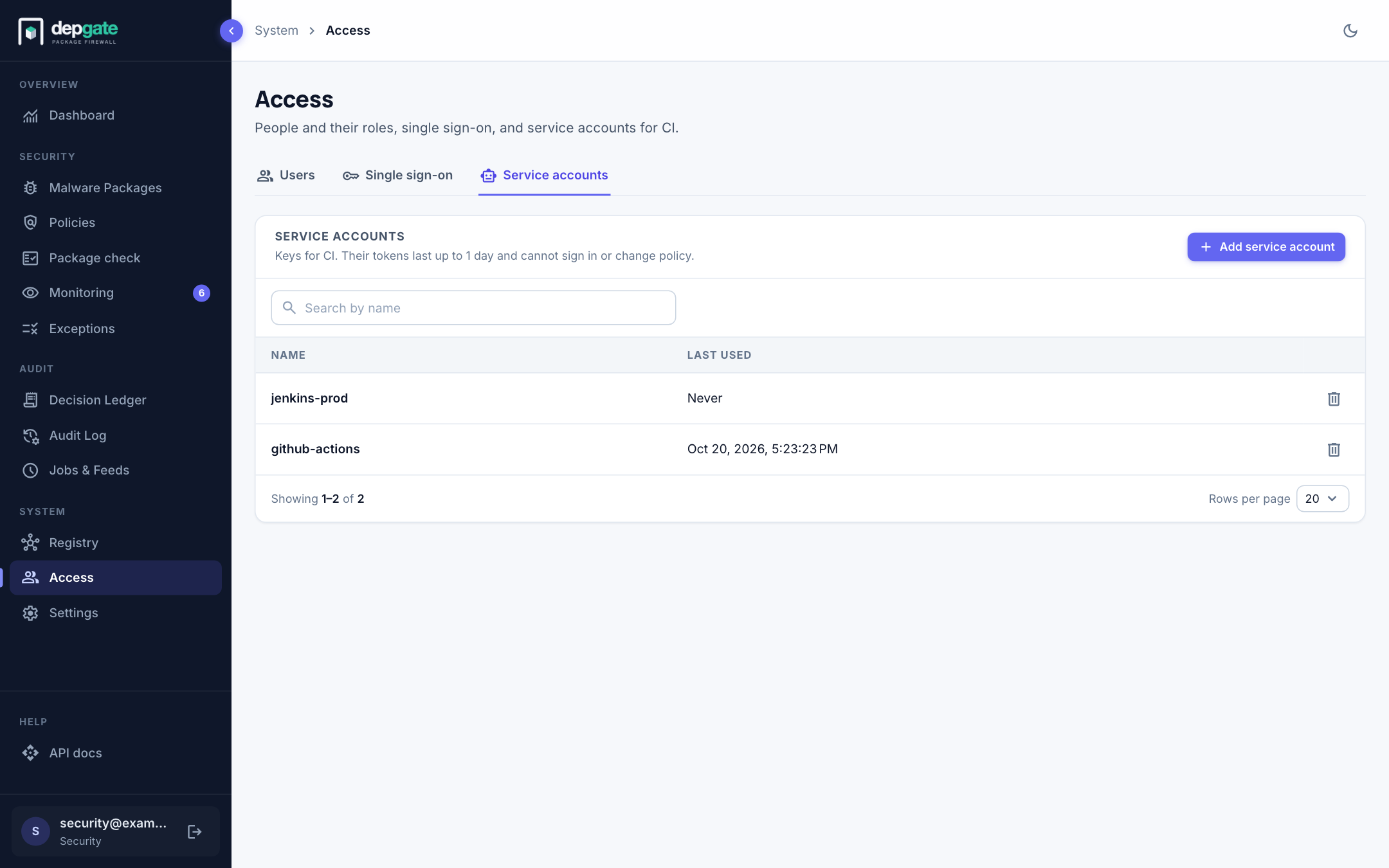
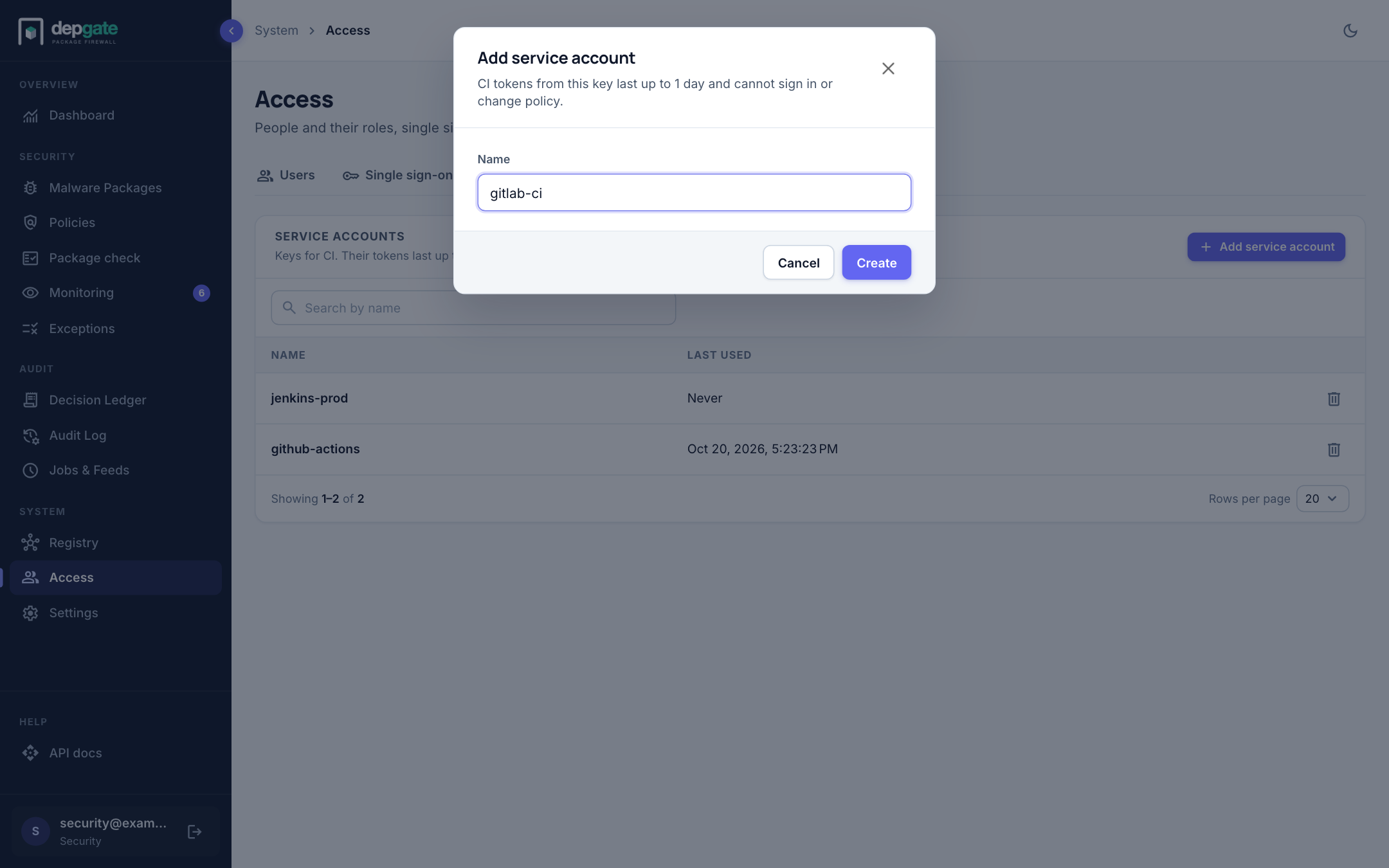
- On the Service accounts tab, choose Add service account.
- Enter a Name, such as
github-actionsorjenkins-prod, and choose Create. - Copy the key. It is shown only once.
- Store the key as a secret in your CI system.
Pipelines exchange the key for a CI token at the start of each job. The token lasts at most 1 day. See CI/CD pipelines. The list shows when each service account was last used. Delete a service account to revoke its key.
Registry tokens
Each person's Registry page shows a snippet with their personal registry token, separate from their browser session. Every download made with it is recorded in their name. The token lifetime (30 days by default) is set under Settings → Repositories → Gateway security.
Every change on this page is recorded in the Audit Log.